Terminal X User Guide
This guide walks through Terminal X in the way you'll use it day to day. It will cover how to ask a question, how to interpret and audit the answer, along with how to run your firm's Workflows and getting your own data into the platform.
About Terminal X
Terminal X is an AI platform for investment teams. It turns a firms memos, models, data rooms and correspondence into Capital Memory, then runs agents that research, model and write in your house format.
Most of what makes a firm good at investing lives in its people, not its systems. Capital Memory captures it: the documents, decisions and processes nobody wrote down, from the firm down to each investor. Every memo and review feeds the next, so it gets sharper the more your team uses it. Our engineers set it up and keep it running; your team owns it.
Firms use Terminal X to build AI that works the way their own desks do. They write Workflows from their own templates, steer any run step by step, test every model against answer keys drawn from their past work, and deploy it all in their own environment.
Ask
Everything in Terminal X starts with a question. This section covers the home screen, how to write a good prompt, and how to choose where the agents look and which agent answers.
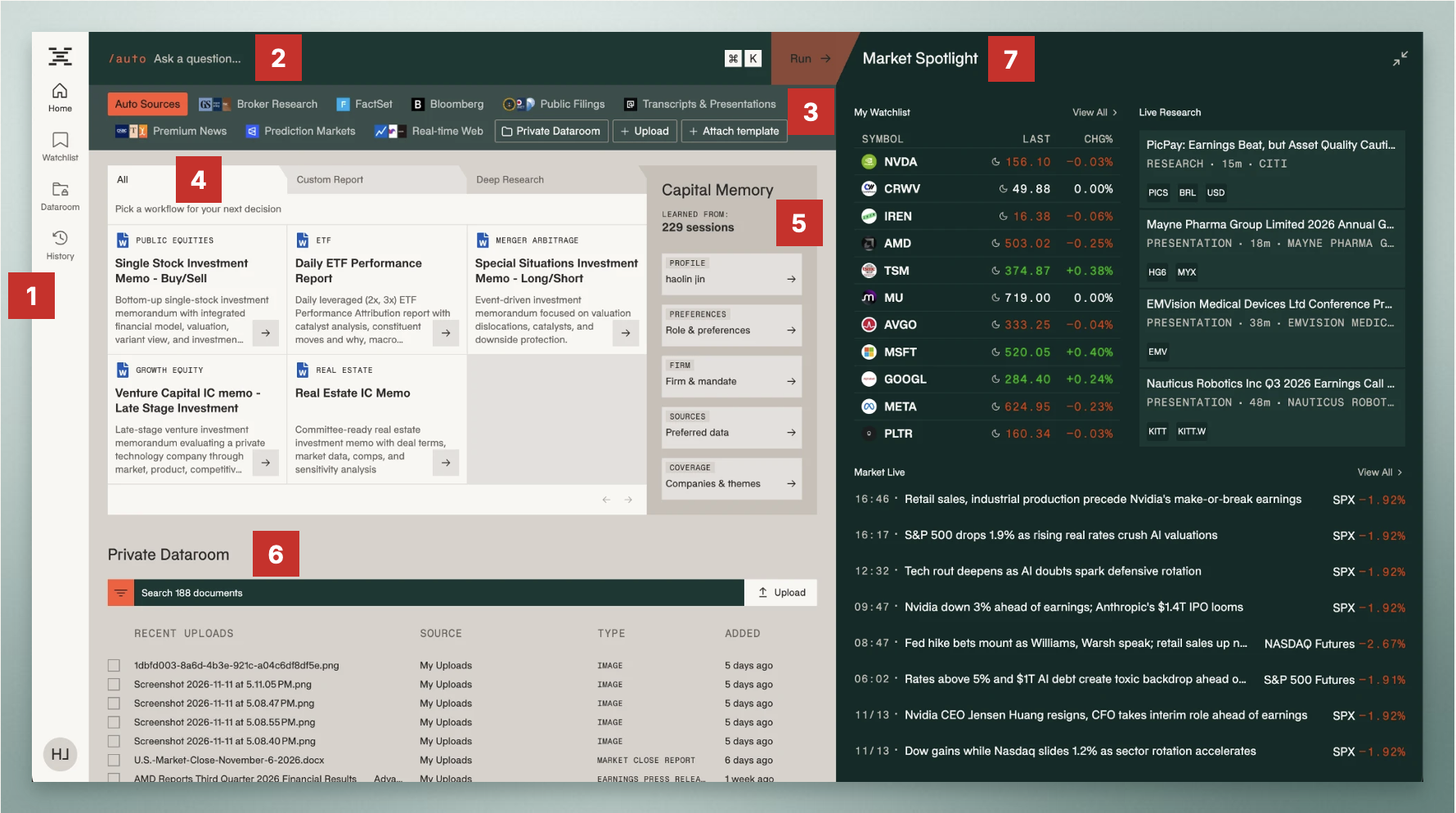
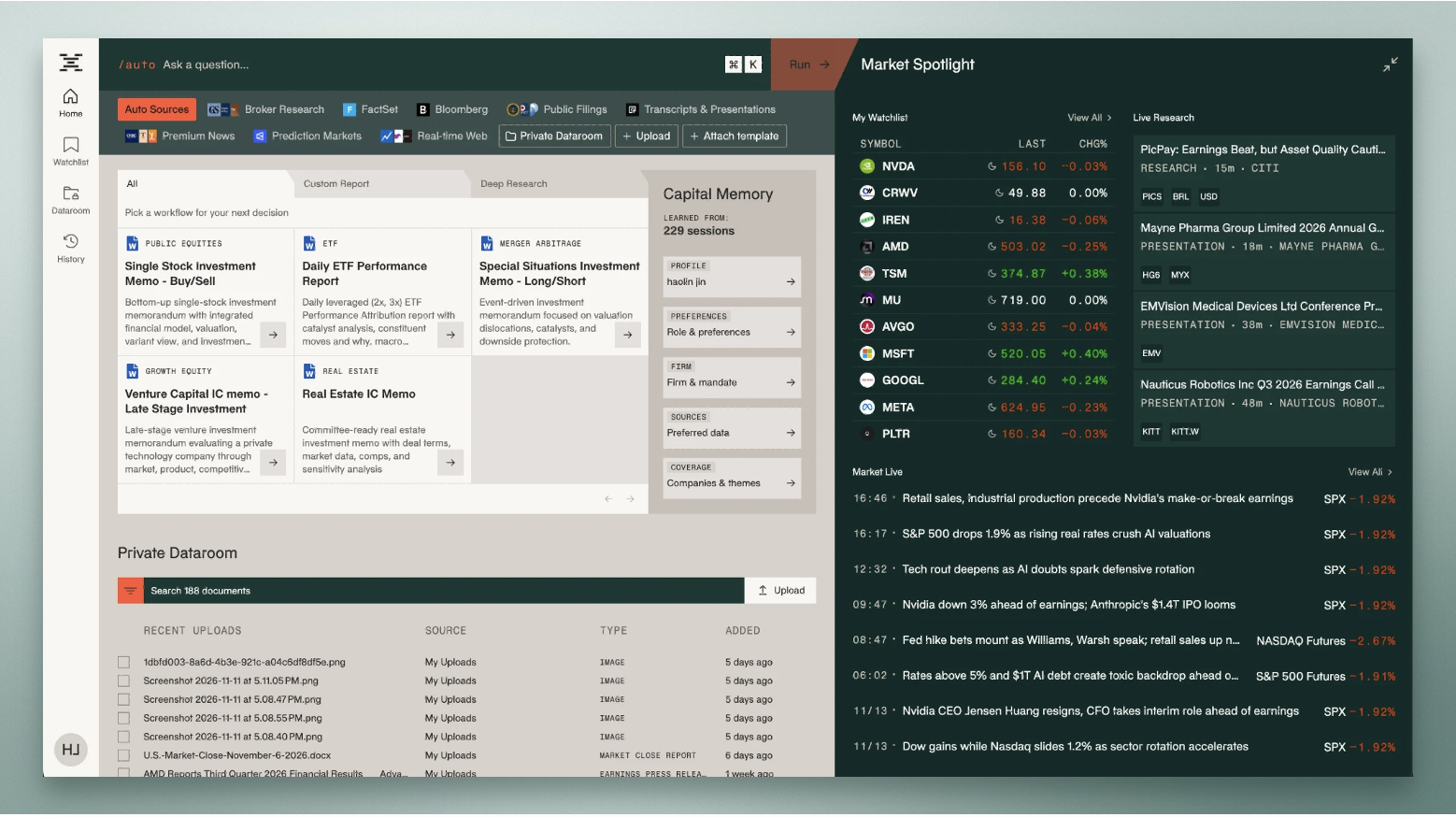
The home screen is built around the search bar [2]. Type a question there, or press Cmd+K from anywhere in the app to jump straight to it. Just below it, Sources [3] decides what data the agents are allowed to search.
The left-hand navigation bar [1] takes you to Home, your Watchlist, the Dataroom and your History of past questions. In the middle of the page is your firm's Workflow library [4]: the reports your firm already produces, set up so you can run them in one click. Next to it, Capital Memory [5] shows what Terminal X has learned about your firm and your preferences. That context is loaded into every run, so you don't have to repeat yourself.
Below, the Private Dataroom preview [6] lists your most recently synced firm files. On the right, Market Spotlight [7] shows your watchlist, new research as it's indexed, and Market Live.
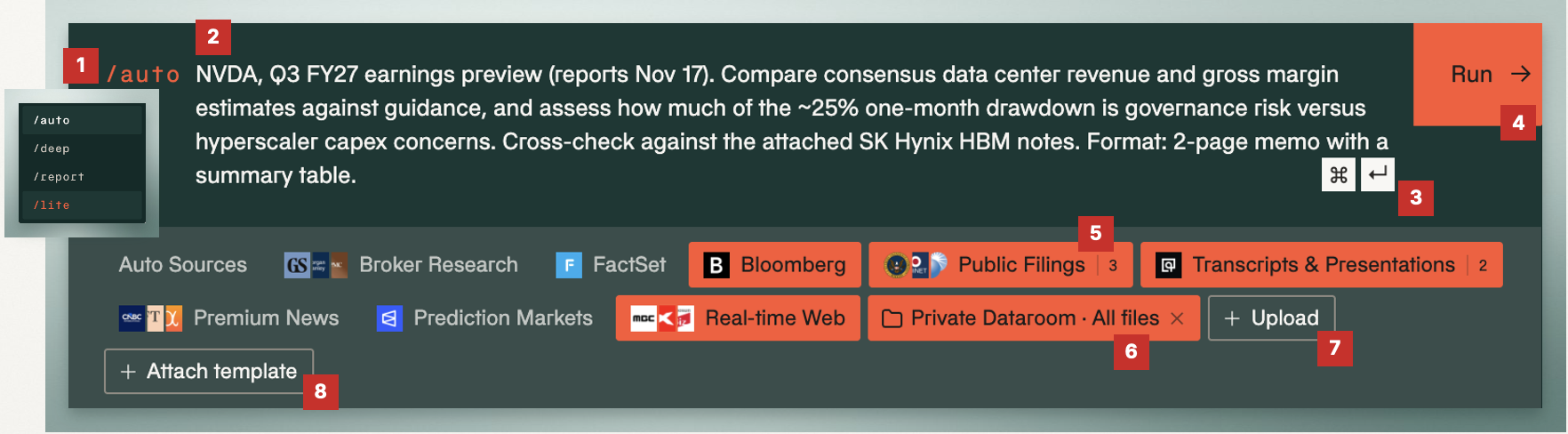
A good prompt reads like a brief you'd give an analyst: name the company, the period, what to compare and the format you want back.
At the start of the prompt box is the agent selector [1]. It's set to /auto, which picks the right agent for you; type / to switch to another one. Write your question in the box [2], then press Cmd+Enter or click Run [4] to start. Run hands your question to the Orchestration Agent, which plans the research.
Under the prompt, the sources you've selected are highlighted in orange [5]. Private Dataroom [6] lets you point the agents at specific files from your firm's data room, and Upload [7] adds a file just for this question. Uploaded files are saved to your Private Dataroom automatically. If you want the answer written in a specific format, Attach template [8] gives the agent your firm's template to follow.

Getting the right answer starts with choosing the right sources and the right agent.
Auto Sources [1] is the default: Terminal X decides which sources fit the question. To be more specific, click any source to include it [2]: broker research, FactSet, Bloomberg, public filings, news and more. Your own files [3] come in through the Private Dataroom, Upload or Attach template.
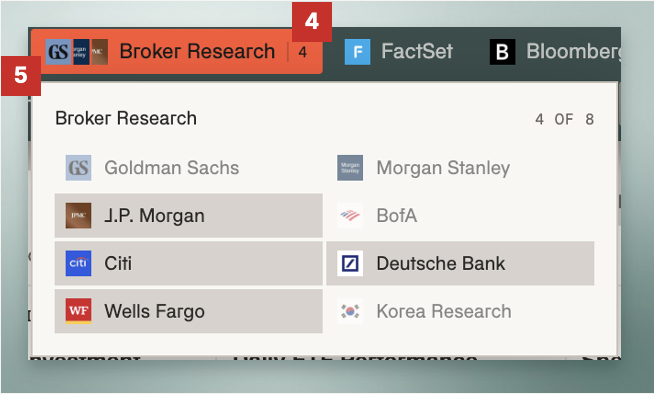
Many sources are made up of several sub-sources. The count next to a source [4] shows how many are switched on, for example 4 of 8 brokers. Opening a source lets you pick its sub-sources [5], so you can limit a search to specific brokers or news outlets.
Then choose an agent. /deep runs Deep Research for questions that need in-depth analysis. /report runs a Custom Report that produces a document in Word, PowerPoint or Excel. /lite runs the Lite Agent for questions that need a quick, simple answer.
Deep and Lite Research
This section shows what a Terminal X answer looks like and, more importantly, how to check every figure in it against the original source.
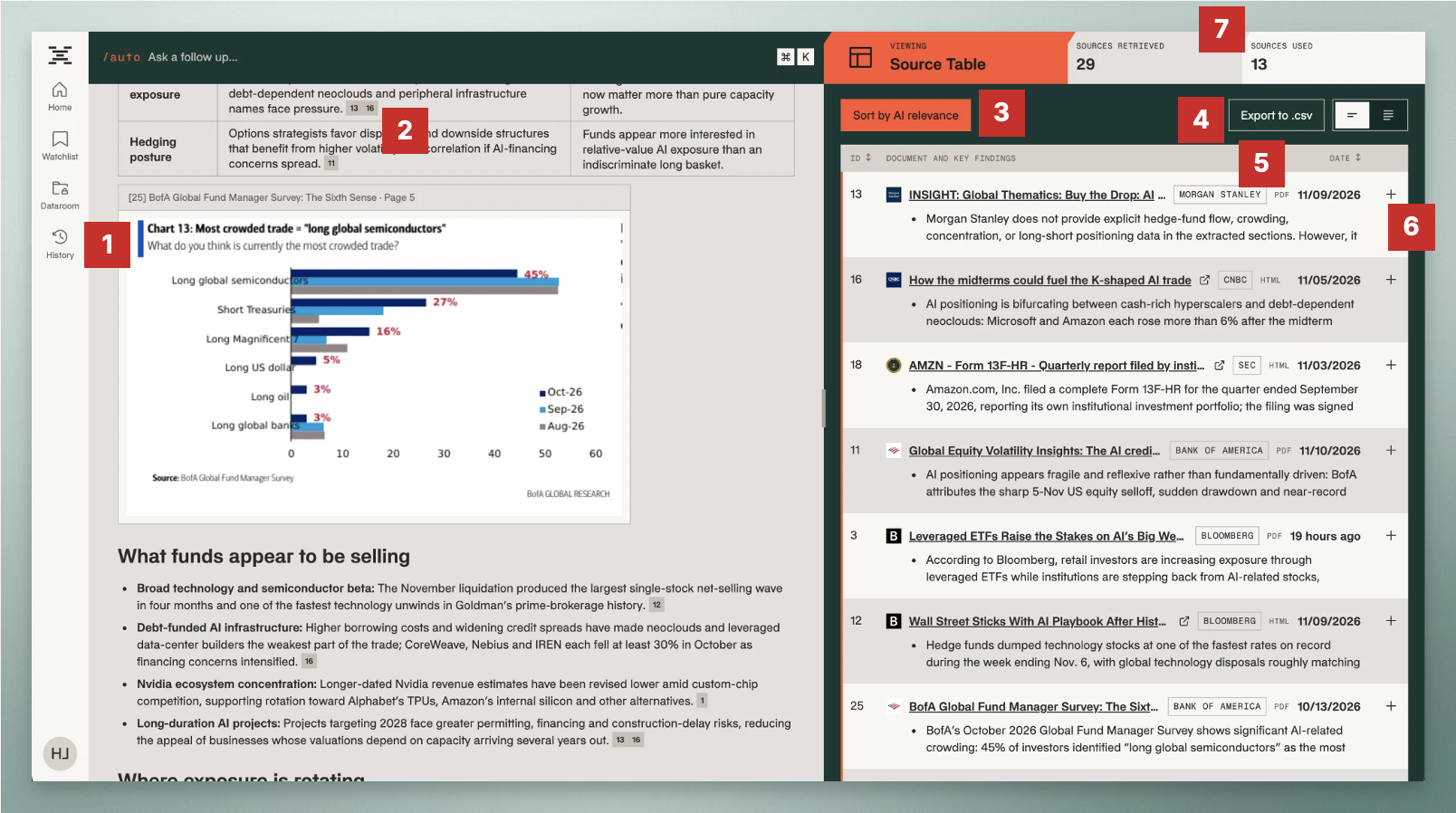
A Deep Research answer is written like a short report, with every claim tied to a source.
This particular answer is in response to the query: "How have hedge funds repositioned in AI-exposed stocks since the October peak? Compare 13F changes, prime broker data on gross and new exposure, and crowding in the semis and hyperscaler trade heading into Nvidia's earnings.
Charts and tables from research reports are pulled directly into the answer [1], with their source and page. Every figure carries a citation number [2], and those numbers match the IDs in the source table on the right.
The source table lists everything the agents found. Sort it by AI relevance [3] to see the sources that mattered most to your question first, or export the whole table to a CSV [4]. Each row shows the provider and document type [5], such as Morgan Stanley, CNBC, SEC or Bloomberg, and a document-level answer [6]: what the agent pulled from that source, so you can check it against the response. At the top of the panel you'll see how many sources were retrieved during the run and how many were used in the answer [7].
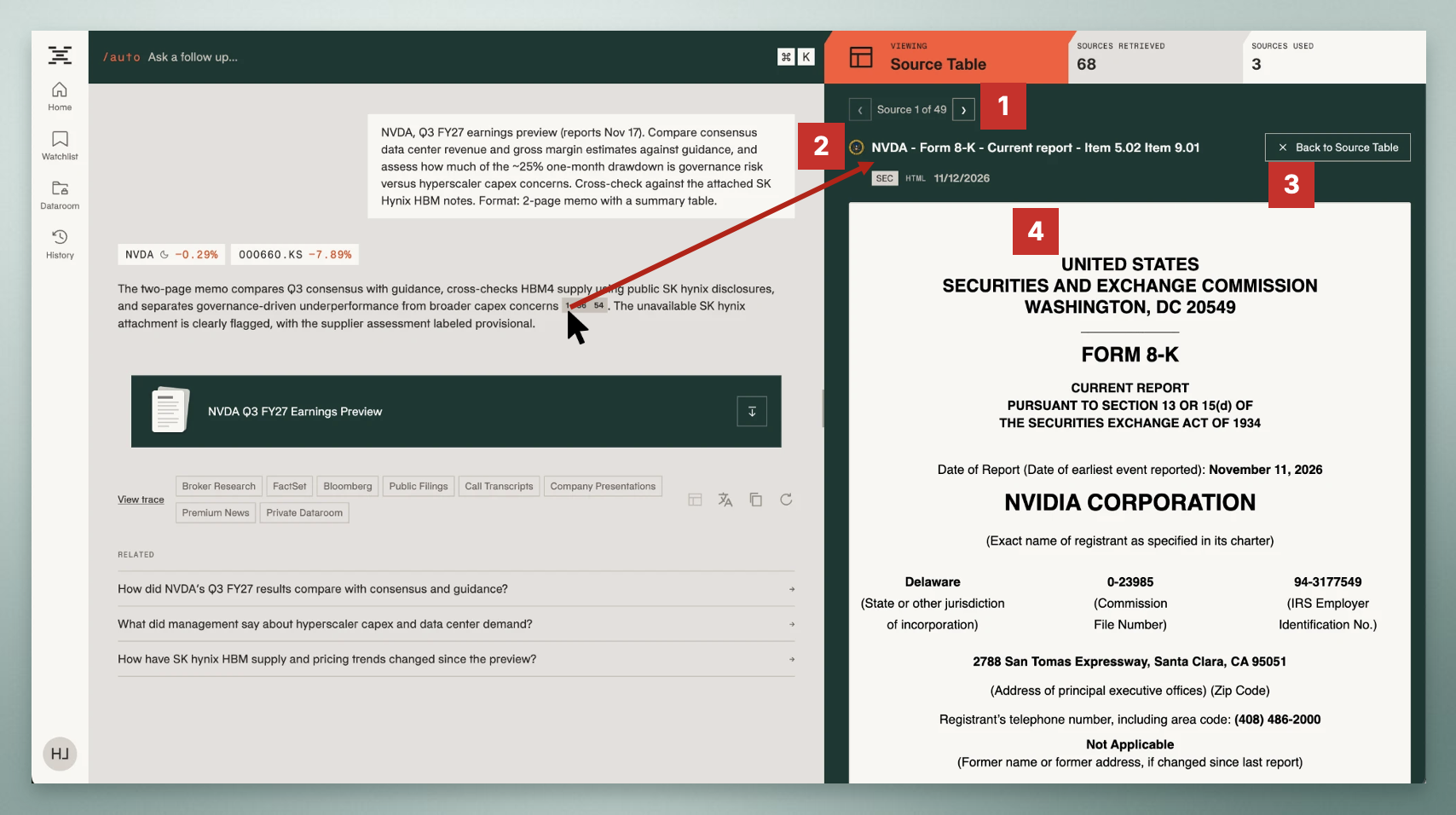
Click any source to open the original document. Use the arrows to step through the sources one by one [1]. The document title and provider [2] are shown at the top, and Back to Source Table [3] returns you to the full list.
The original source opens right next to the answer [4], so you can read the exact passage the agent relied on. This works for public sources and for your own firm's files.
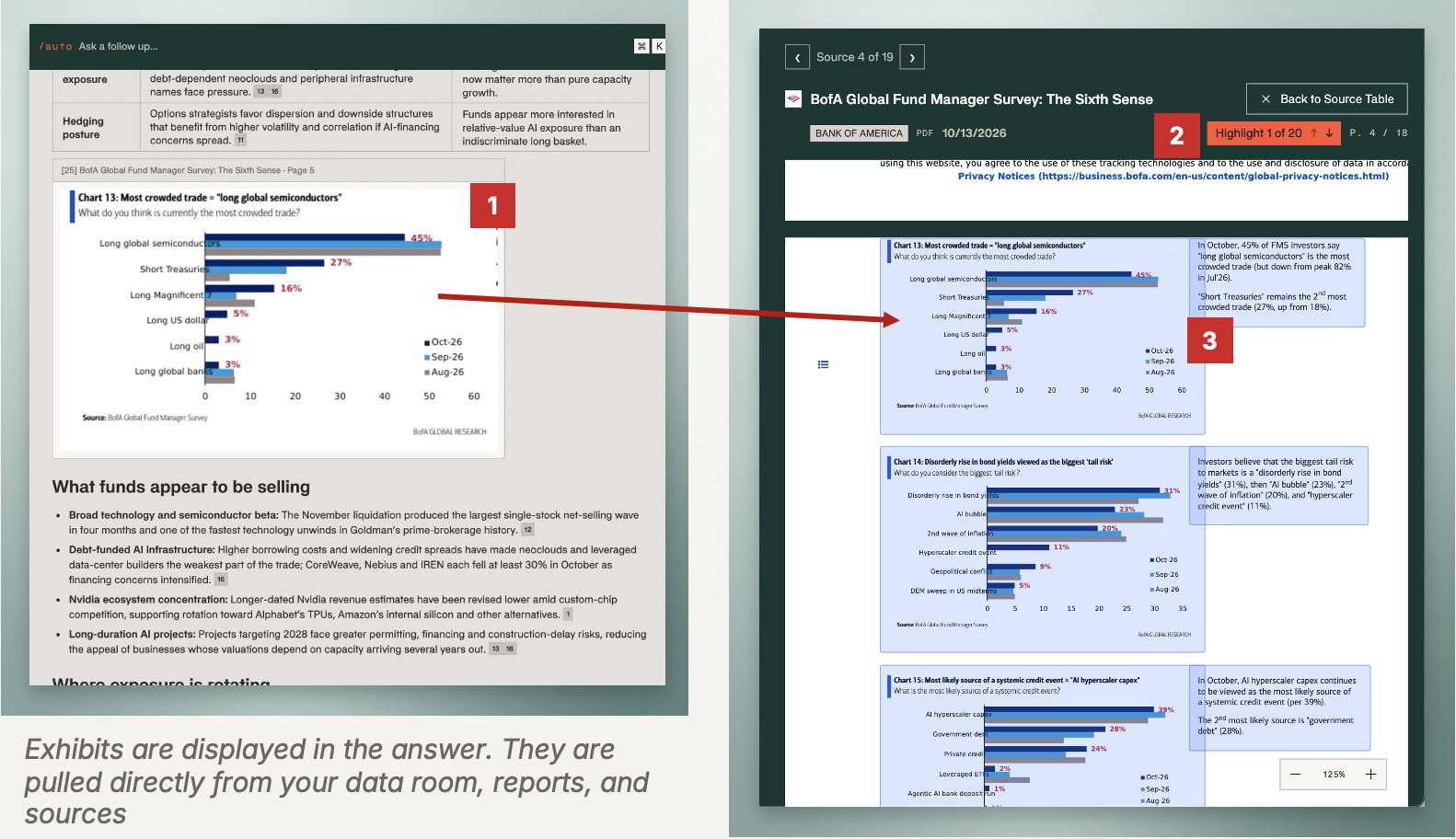
Citations go down to the page, chart and figure. Exhibits cited in the answer [1] are pulled directly from your data, whether that's a report, a deck or a PDF. In the source viewer you can jump between highlights [2] to see every passage the answer used, and the charts and tables it drew on are highlighted in the original document [3].
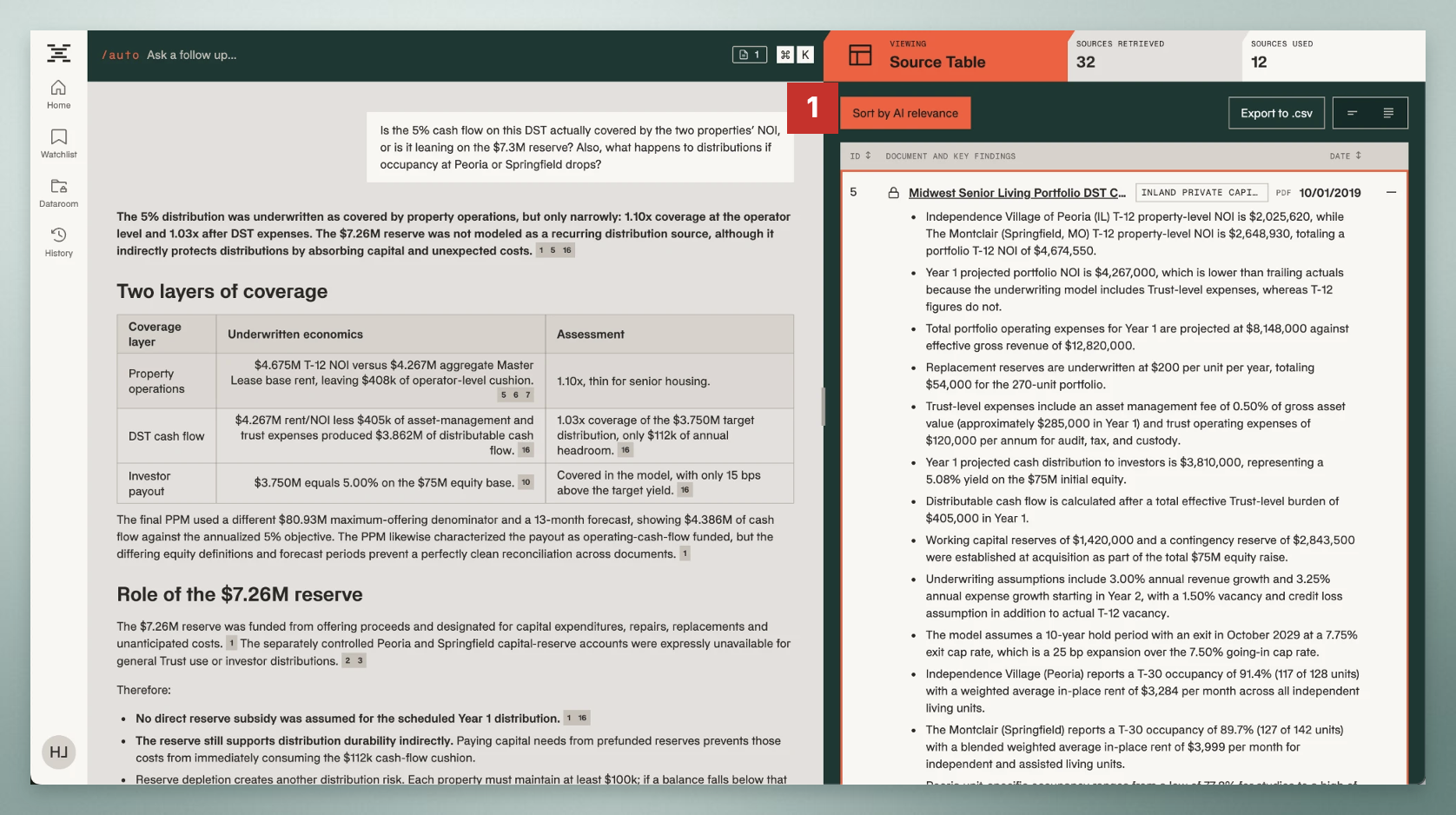
You can sort sources by AI relevance or by date [1]. By default every source carries the same weight, but your firm can set rules for which sources to trust more or less. Those rules are saved to your firm's Capital Memory and applied to every search from then on.
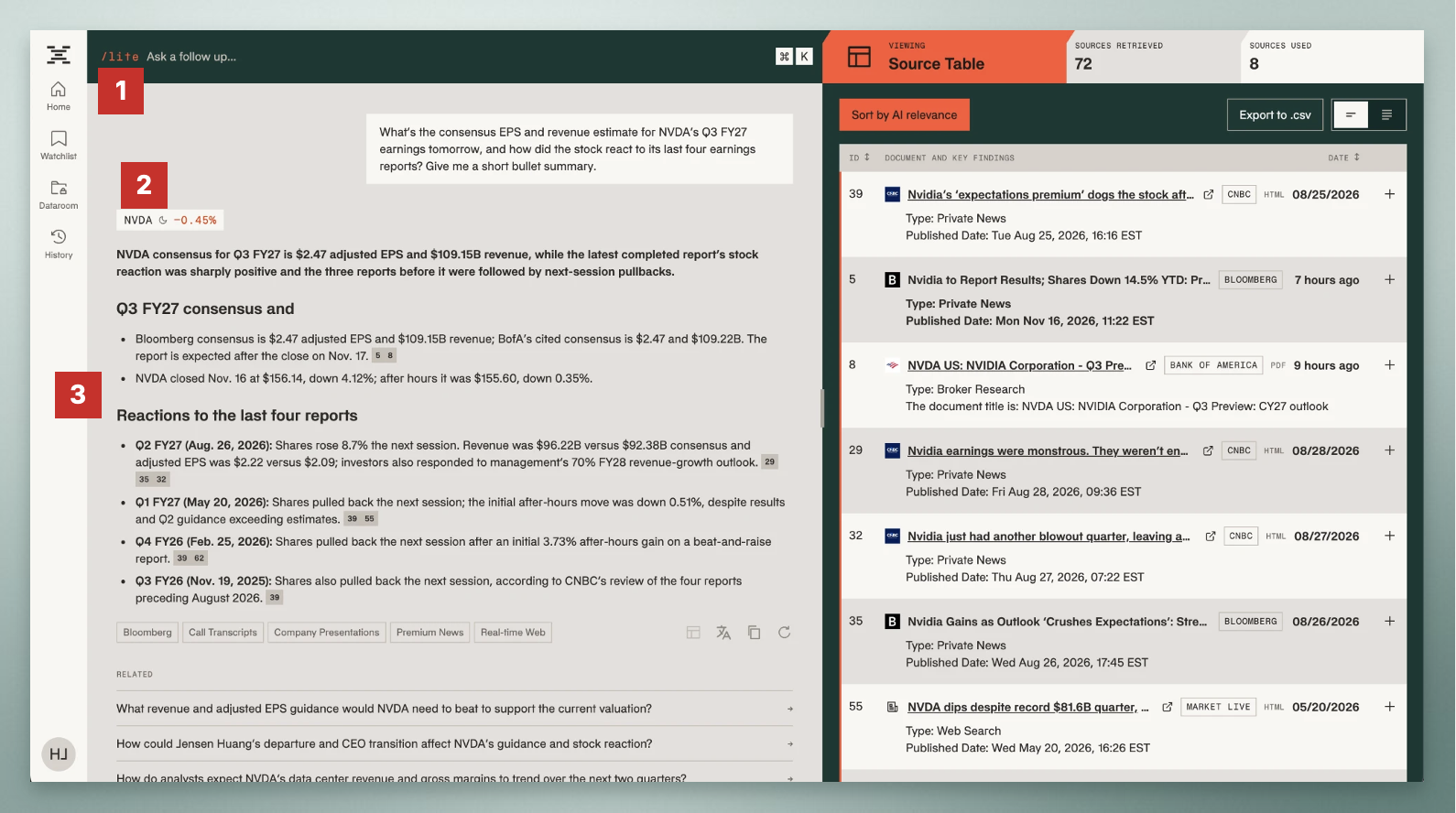
For quick market checks, use the Lite Agent. Type /lite before your question, or pick Lite Agent from the dropdown [1]. You get the related tickers with today's move [2] and a short answer that puts the key facts up front [3], in seconds rather than minutes.
Workflows
Workflows are templates for the work your team repeats: IC memos, DD reports, models and decks, produced in your firm's own format every time.
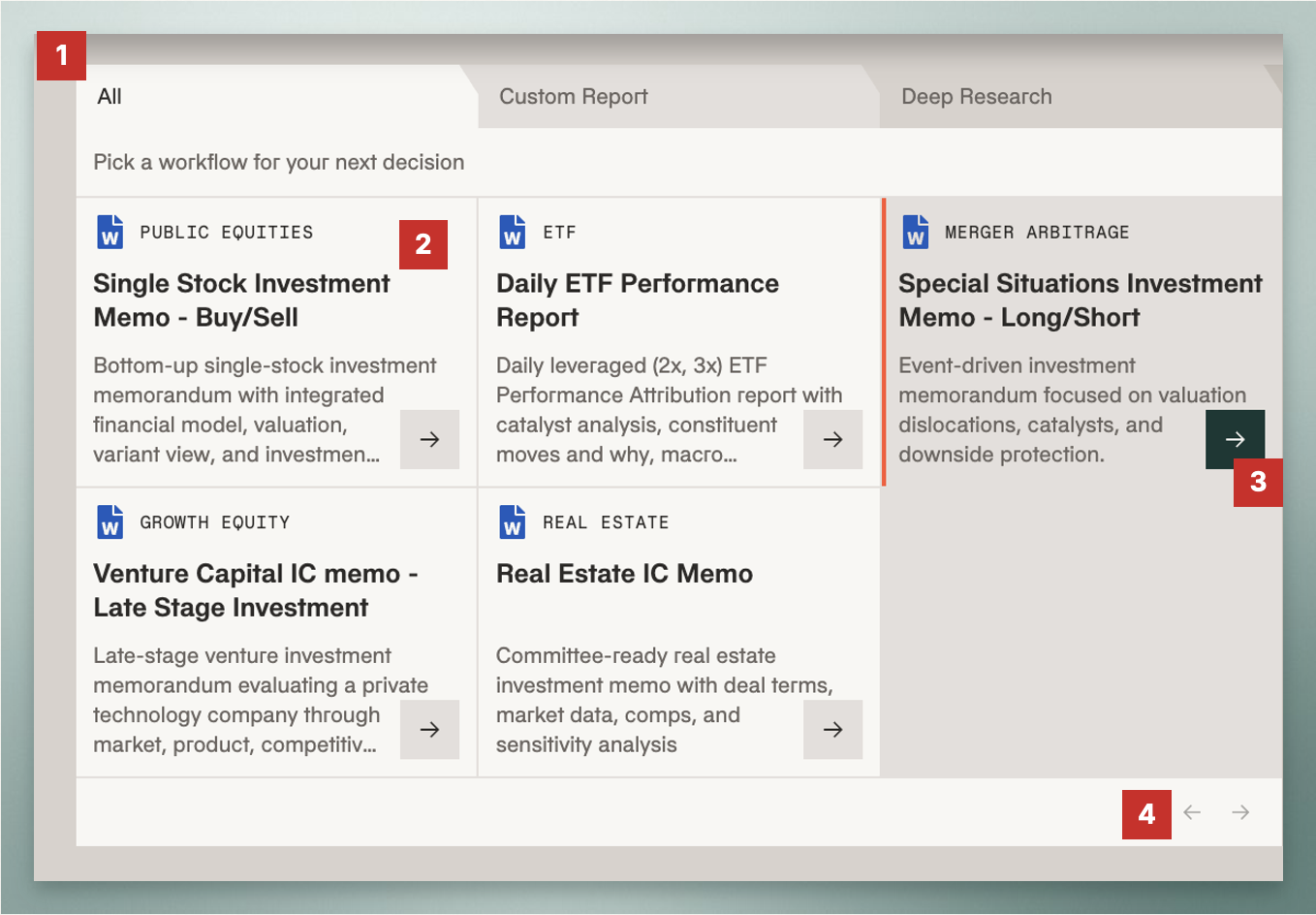
The Workflow library is organized by agent [1]: view all Workflows, only the Custom Report ones that produce a downloadable file, or the Deep Research ones that answer in the chat. Each card [2] is one of your firm's templates, by strategy and asset class. Click Run [3] to load it into the prompt box, and use More [4] to page through the full library.
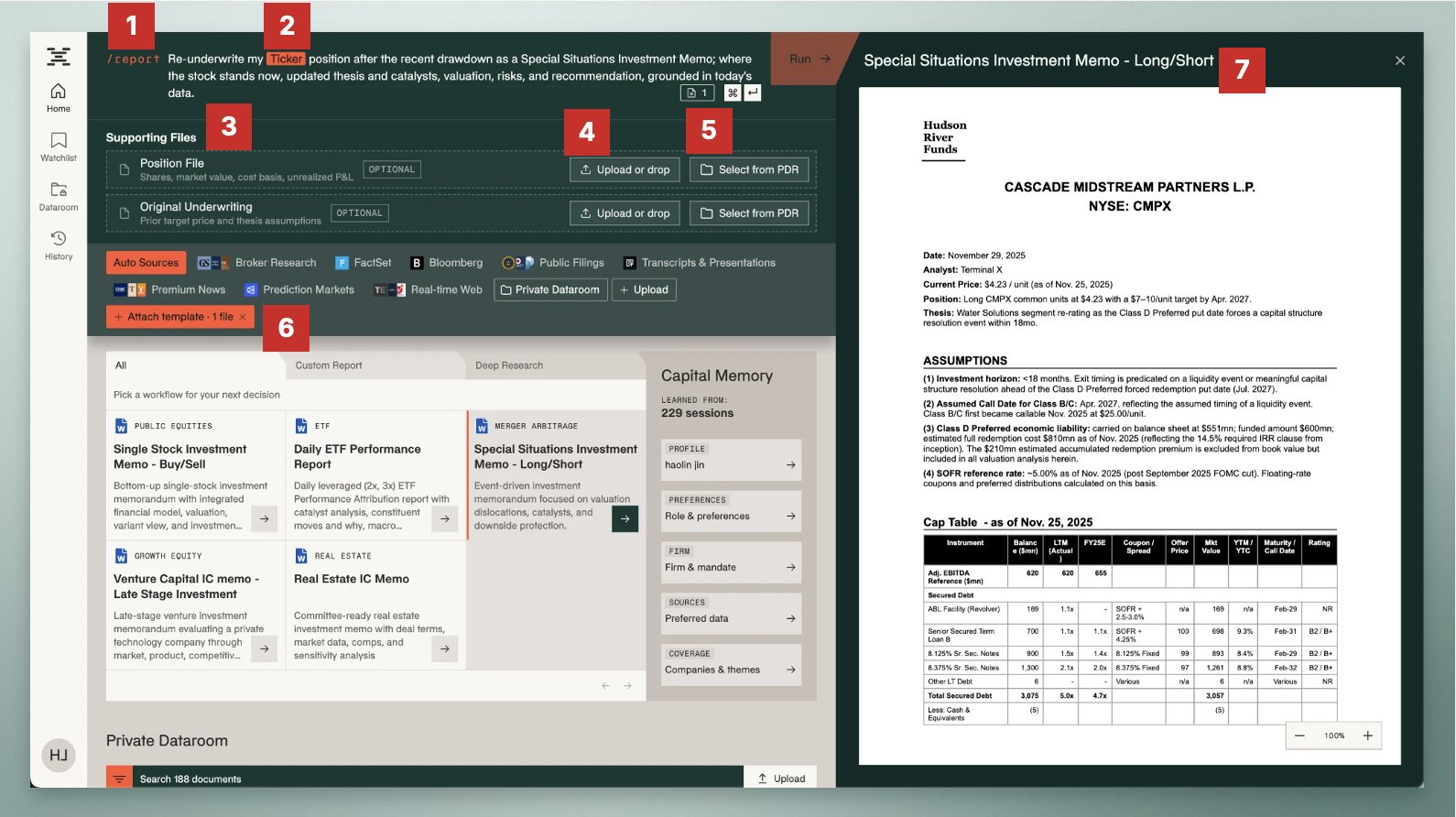
Once you pick a Workflow, Terminal X sets everything up for you. Workflows that produce Word, PowerPoint or Excel files switch on the /report Agent [1], and the prompt fills in automatically [2]. Usually all you change is the ticker.
Each Workflow lists the inputs it needs [3], some required and some optional, such as an Excel model. Drag and drop a file from your computer [4] or select one from your firm's Data Room [5]. The attached template shows in the source panel [6], and on the right is a preview of the final output [7]. The preview updates to reflect the context you give in the prompt.
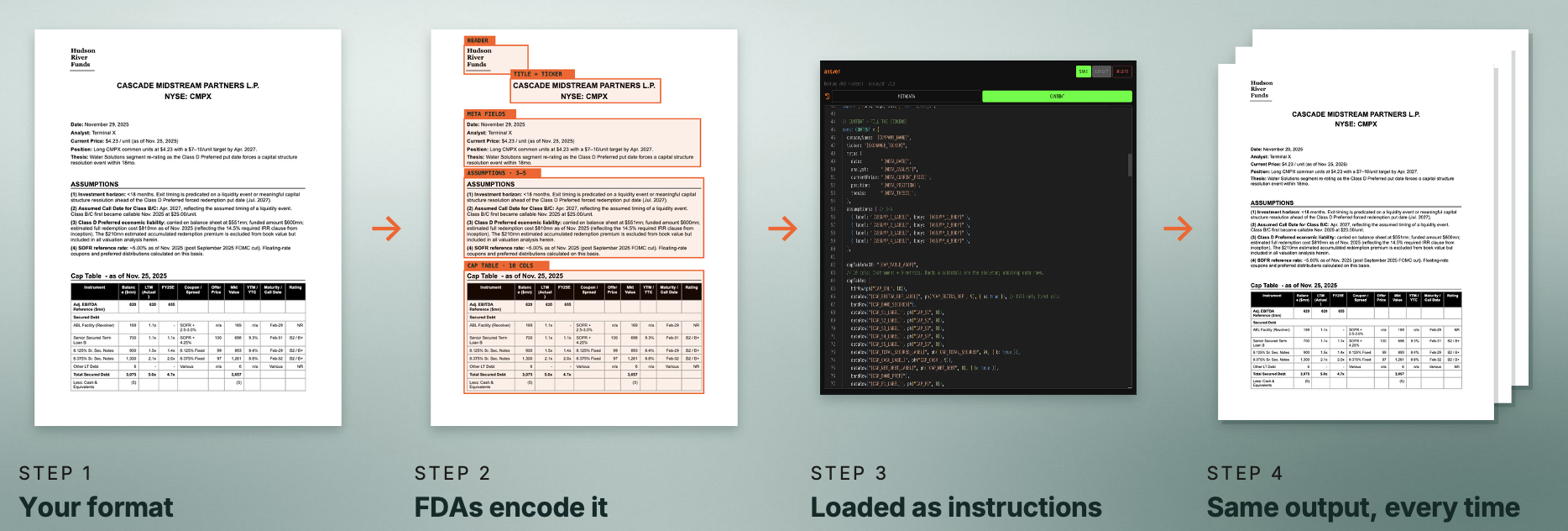
How does a Workflow know your firm's format? Our Forward Deployed Analysts start from any memo, report, model or deck your firm already uses. They break it down into its sections, tables and house style, then load it into the Workflow as instructions the agent must follow. Every run comes back in your format, with updated content, at the same quality.
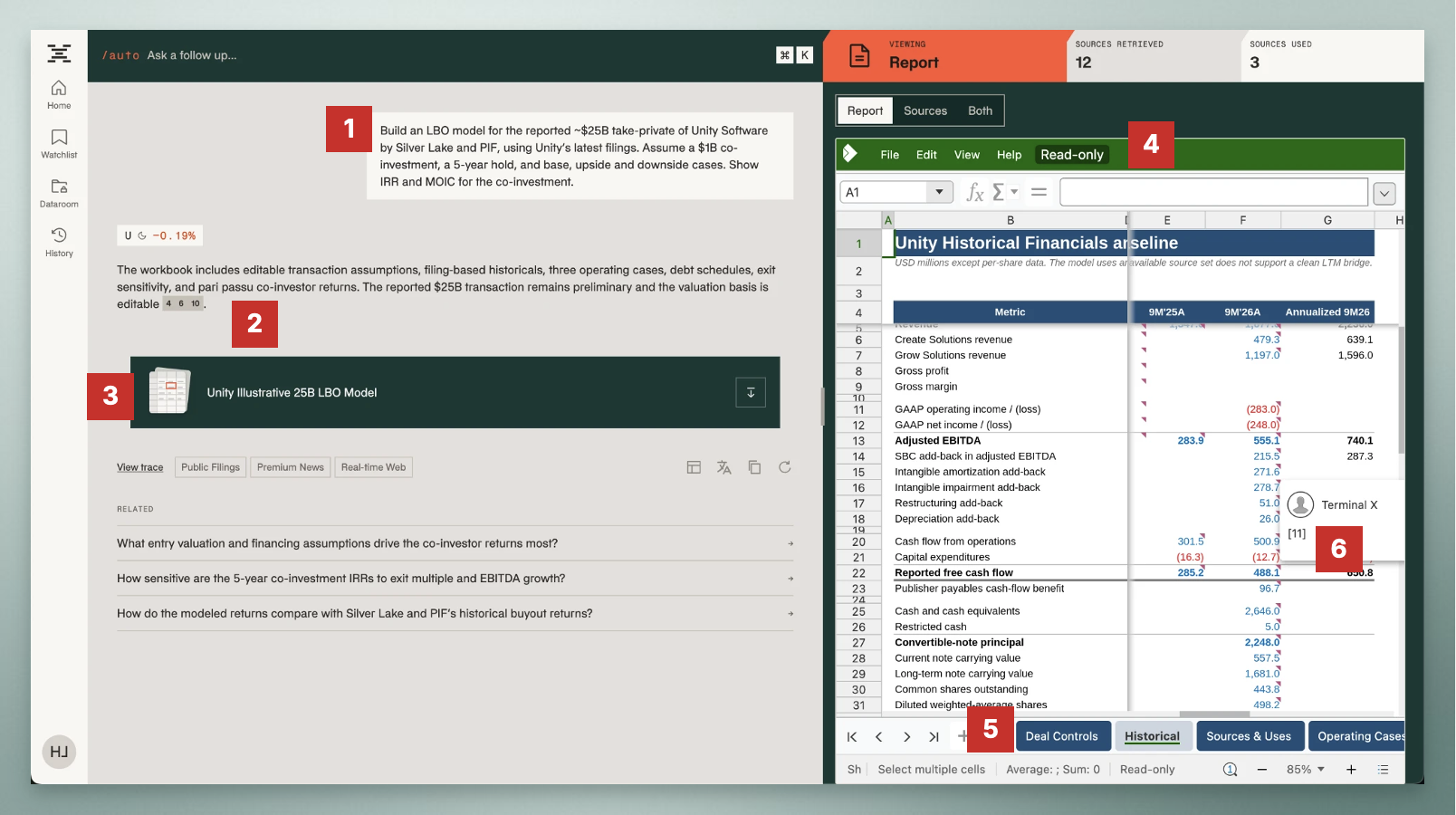
Workflows can also produce a working Excel model. Describe what you need [1], for example an LBO with three cases, IRR and MOIC. The agent checks and fixes its own model before handing it over [2]. Download the file or open it in place [3] to see every tab, formula and cell [4]. The workbook comes with tabs for deal controls, historicals, sources and uses, cases, debt and returns [5], and the historical inputs are cited back to the filings they came from [6].
Memory
The more you tell Terminal X about how you work, the more every answer sounds like your desk.
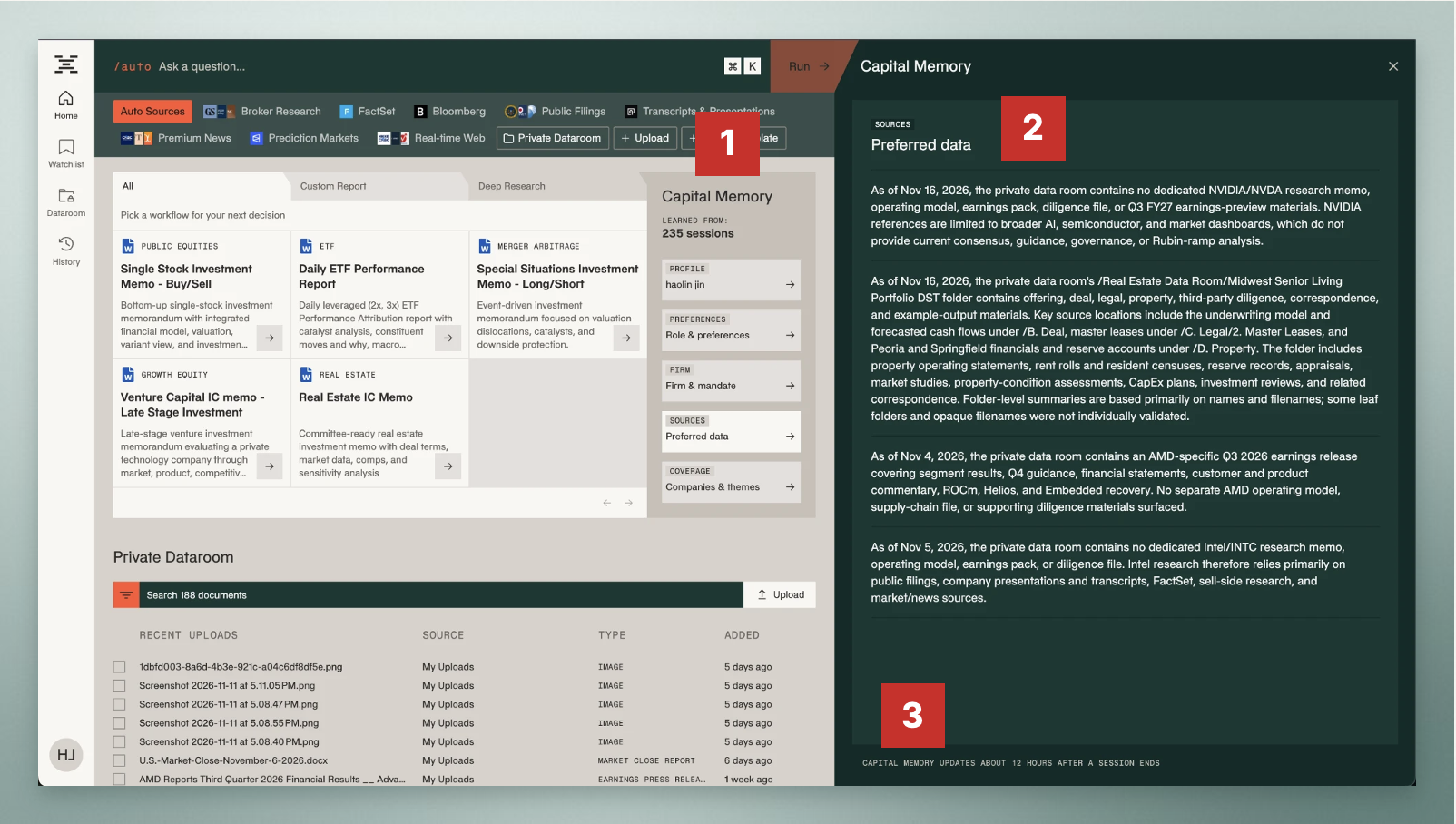
Terminal X saves what it learns from your sessions as memories: short lines about you, your firm and your data sources. For example, how you size speculative ideas, how you want research structured, or what is and isn't in your data room. Agents read these before they start, so you can focus on the question instead of repeating context.
Open Capital Memory from the home screen [1] and tab through each section. You can read your current stored memories [2] at any time; memory is a living record of how you work. It updates on its own [3], about 12 hours after a session ends.
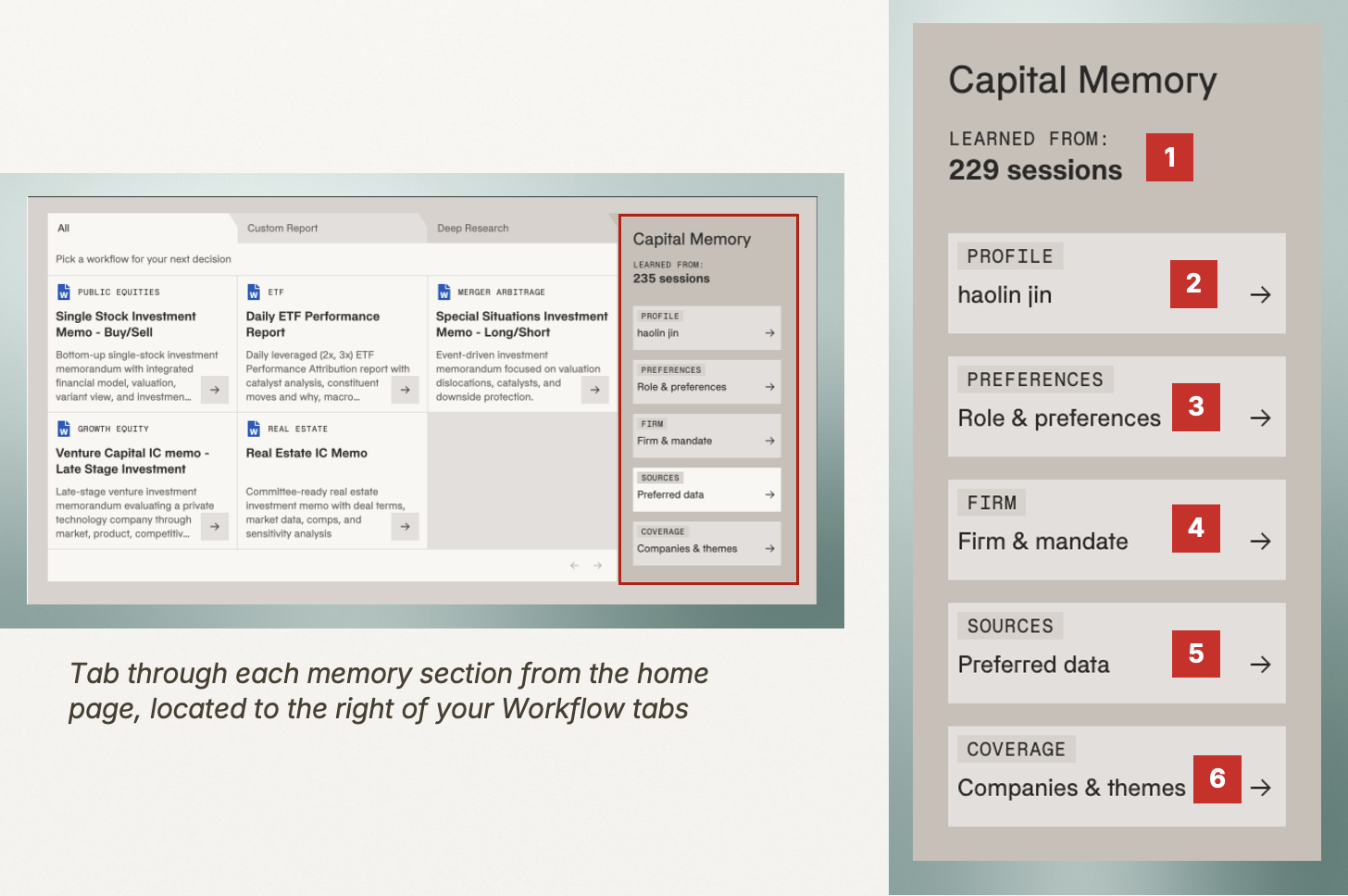
Capital Memory is organized into sections. At the top is how many of your sessions have shaped it so far [1]. Profile [2] is who you are and what you cover. Preferences [3] is your role, the formats you like and how you want answers written. Firm [4] holds your firm's mandate, house view and standards. Sources [5] records where specific files live in your firm and which data you trust most. Coverage [6] lists the companies and themes you follow.
Inside the Agent
Every answer in Terminal X is built by a team of agents. This section shows how to read their work: the plan, their thinking, the searches they ran and what they found.
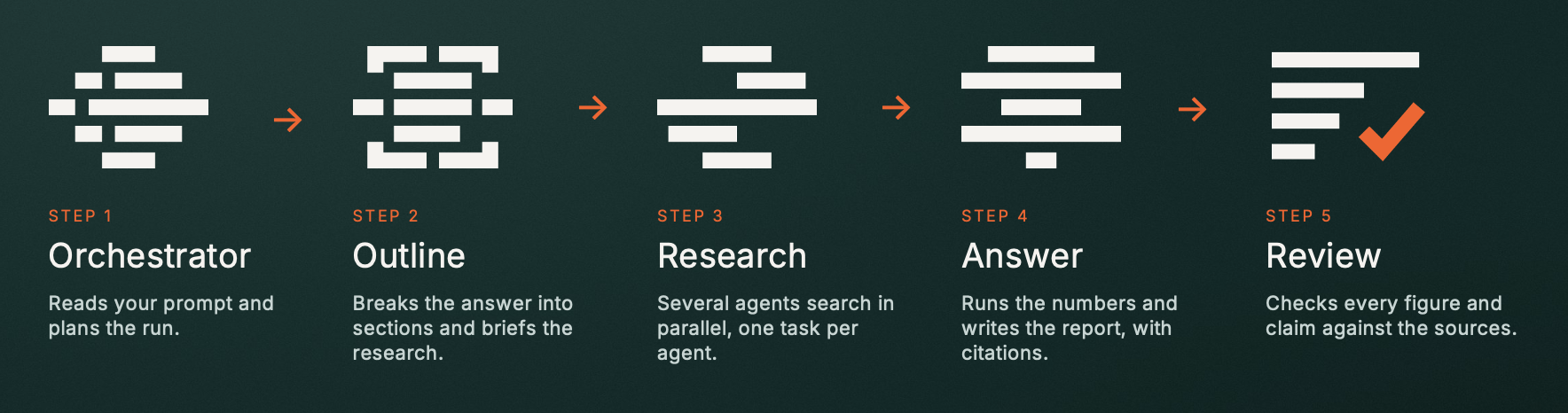
When you press Enter, five agents work in order. The Orchestrator reads your prompt and plans the run. The Outline Agent breaks the answer into sections and briefs the research. Several Research Agents then search in parallel, each with one task. The Answer Agent runs the numbers and writes the report with citations, and the Review Agent checks every figure and claim against the sources before you see it.
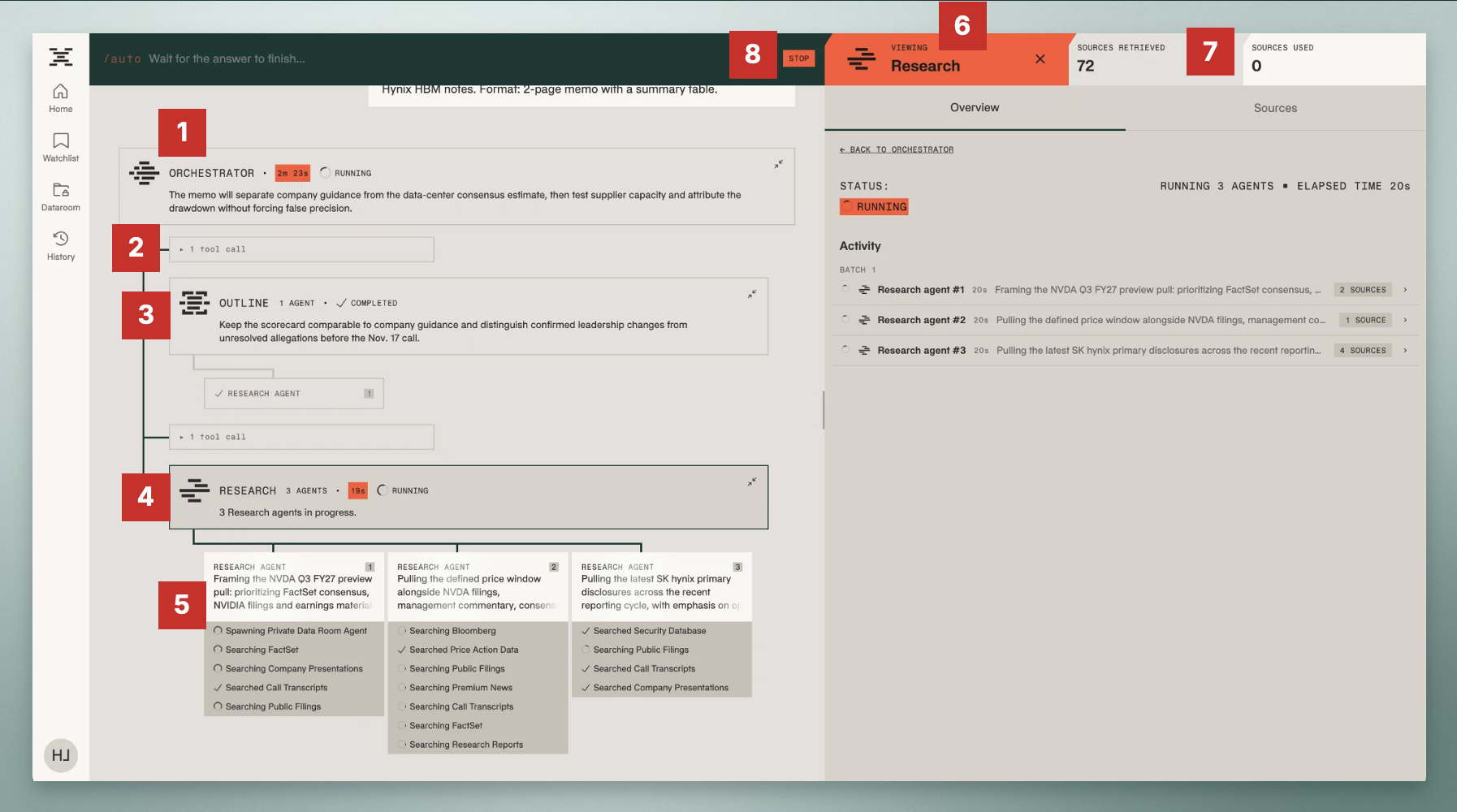
The run view shows all of this live. The Orchestrator [1] plans the answer, and its latest thinking shows on its card. Each tool call [2] is one search or action; click it to see what happened. The Outline [3] structures the answer, and the Research step [4] shows how many Research Agents it started. Each Research Agent [5] gets its own card with every search it ran.
Click any card to open it in the side panel [6]. The counters at the top [7] show sources retrieved so far and how many ended up in the answer. You can stop the run at any time [8].
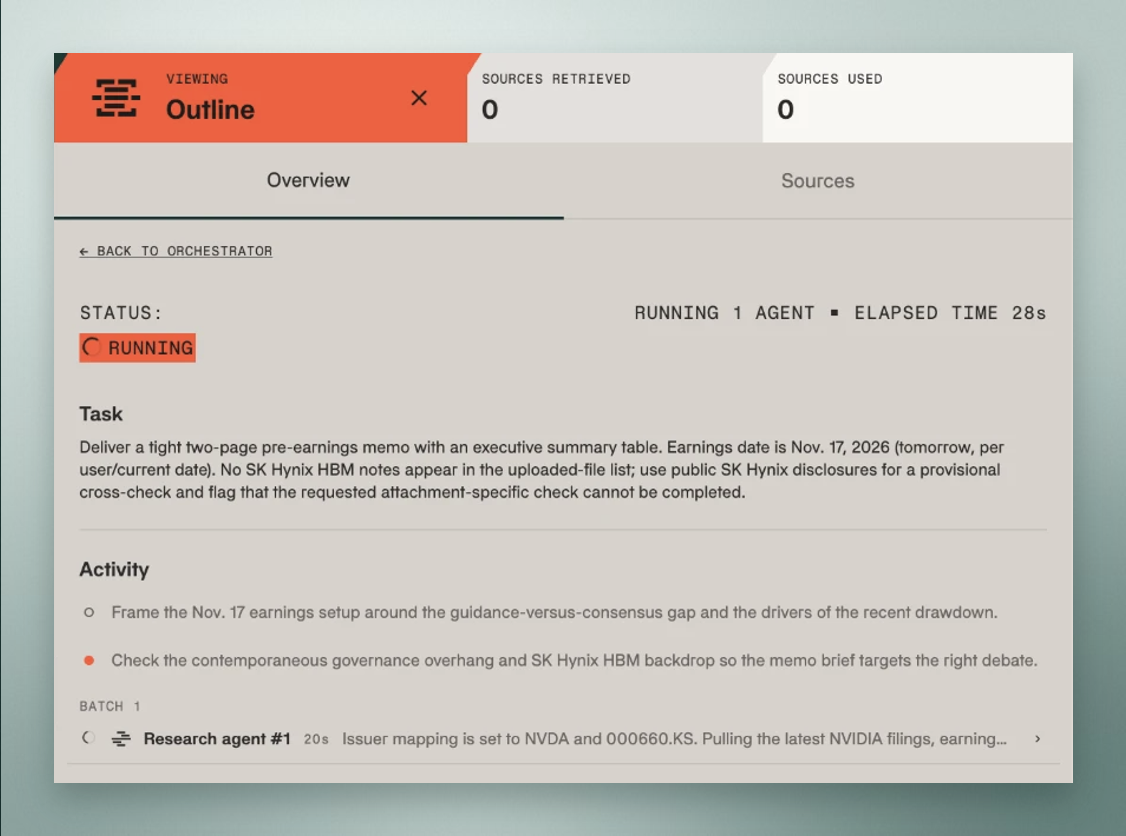
Each agent also shows its thinking: short working notes on why it did what it did. An open circle marks a step the agent has planned, and the orange dot is what it's working on now. The Orchestrator's notes show its plan and which agent it's calling next. The Outline Agent's show how it frames the answer. The Research step shows each agent's task, time and sources found. Thinking explains the reasoning; only the cited text in the answer is the result.
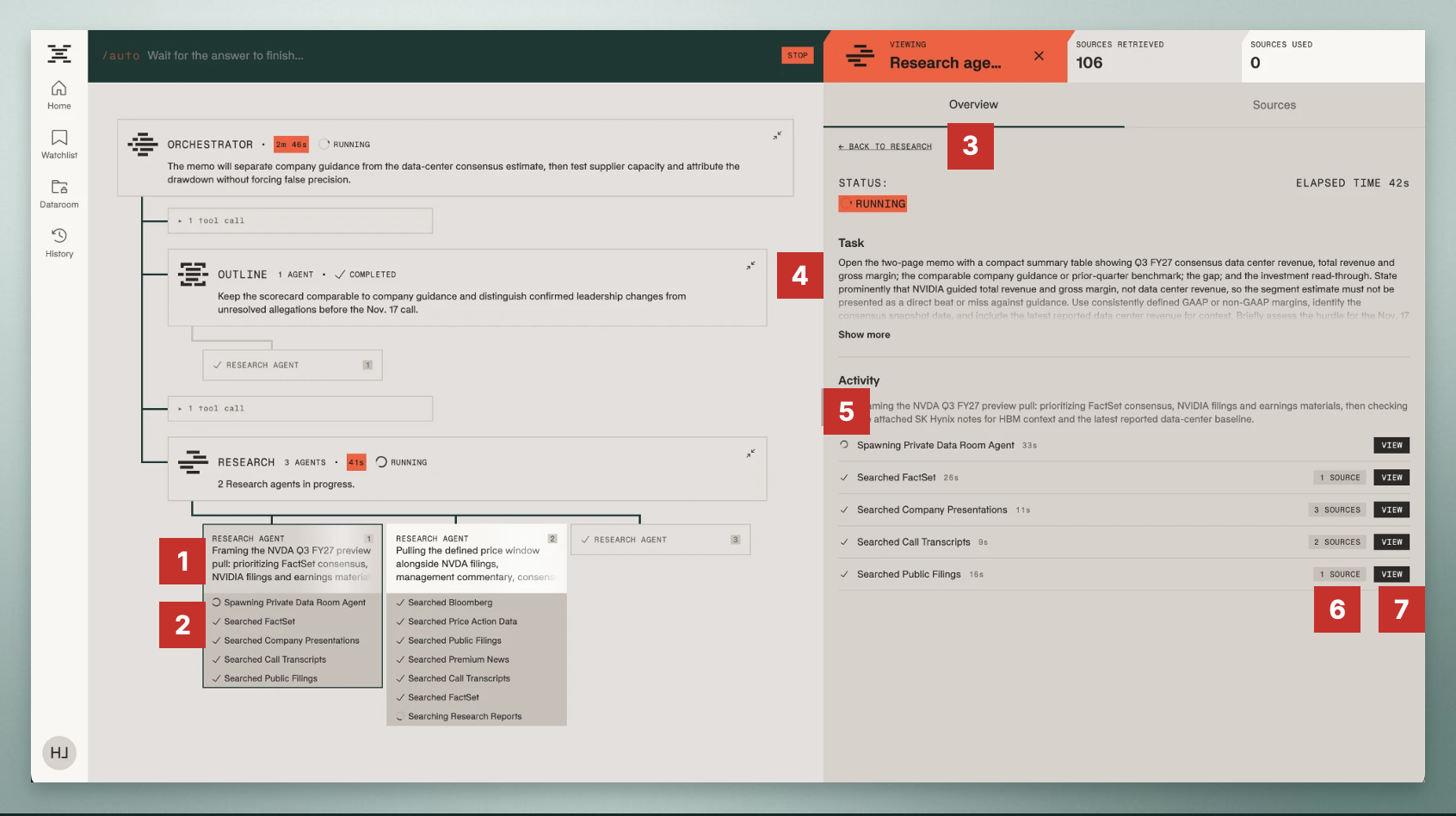
Open a Research Agent to see exactly how it searched. Its card shows its task and latest thinking [1], and every search it ran [2], each ticked off when done. In the panel you'll see the brief it was given [4], why it chose each search [5], and how many sources each search found [6]. Click View [7] on any search to open that tool call, or Back [3] to return to the agent that started it.
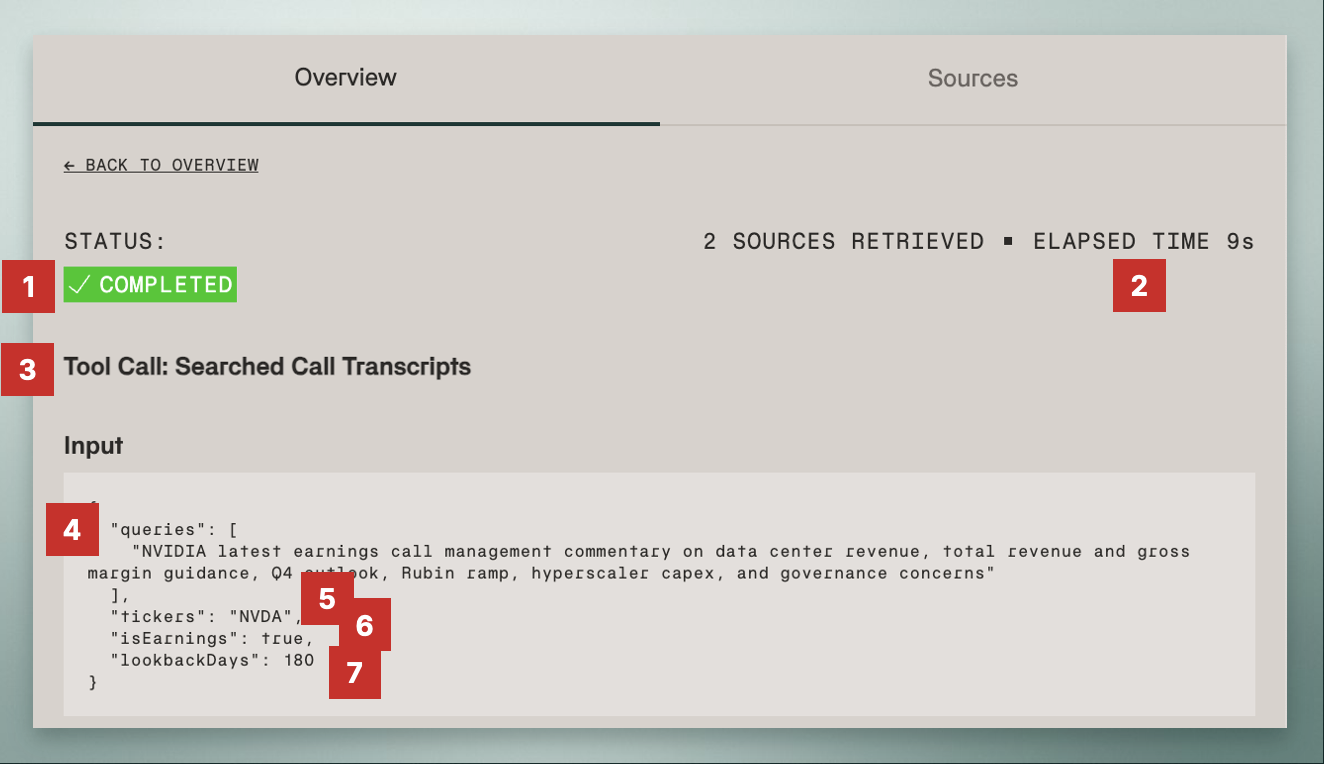
A tool call shows what was searched and how. At the top are its status [1] and how long it took [2]. Below is the source it searched [3], for example call transcripts, and the exact queries it sent [4]. Agents often write several versions of a query to catch more documents. You'll also see the tickers the question was matched to [5], filters like earnings calls only [6], and how far back it searched [7]. Fields vary by tool, but they always tell you what was searched, where and over what time window.
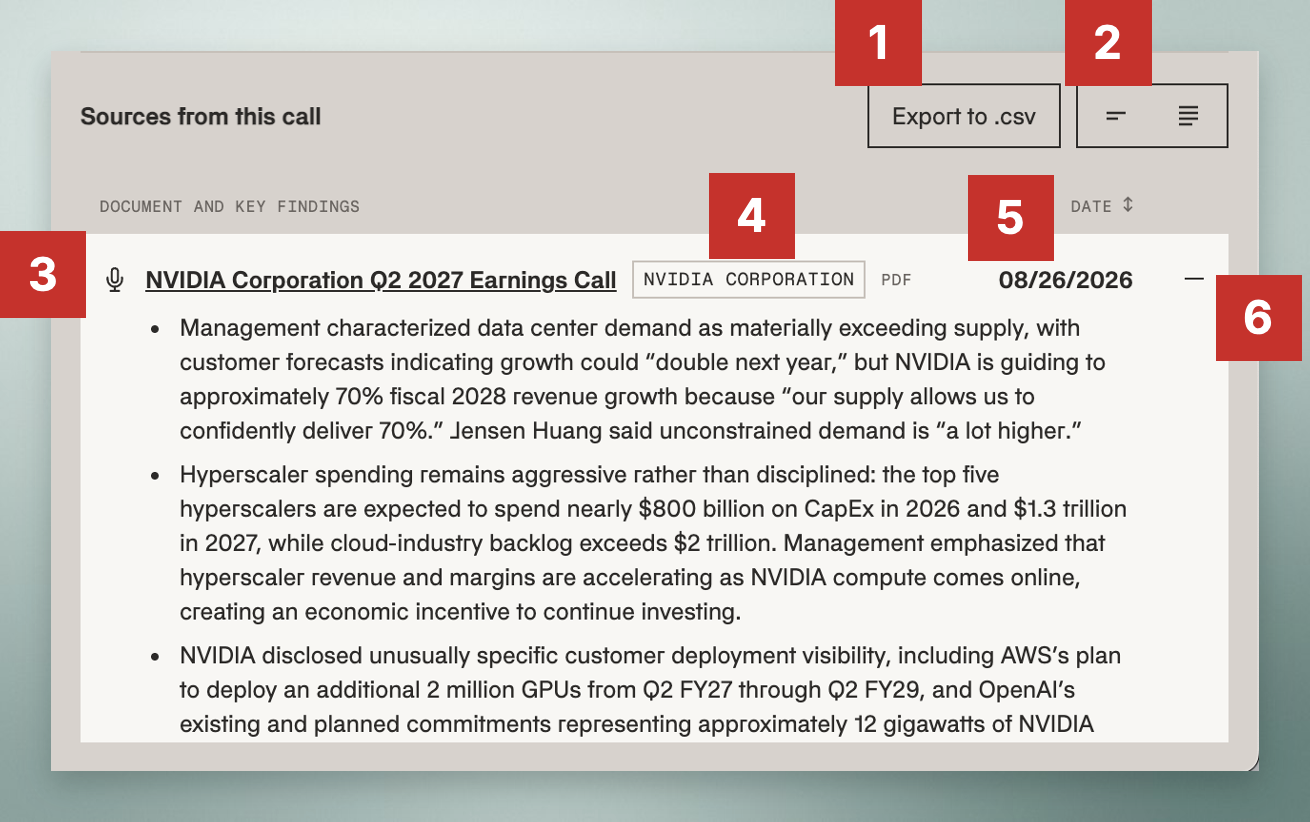
There are two kinds of output. A tool call returns the sources it found: export them to CSV [1], switch between compact and full findings [2], click a title to open the original [3], and see each source's provider, type [4] and date [5]. Expand any row [6] to read its findings.
Agents that don't search data, like the Answer and Review Agents, hand back written findings instead. Here, the Review Agent tells the Answer Agent exactly what to fix in the draft, page by page.
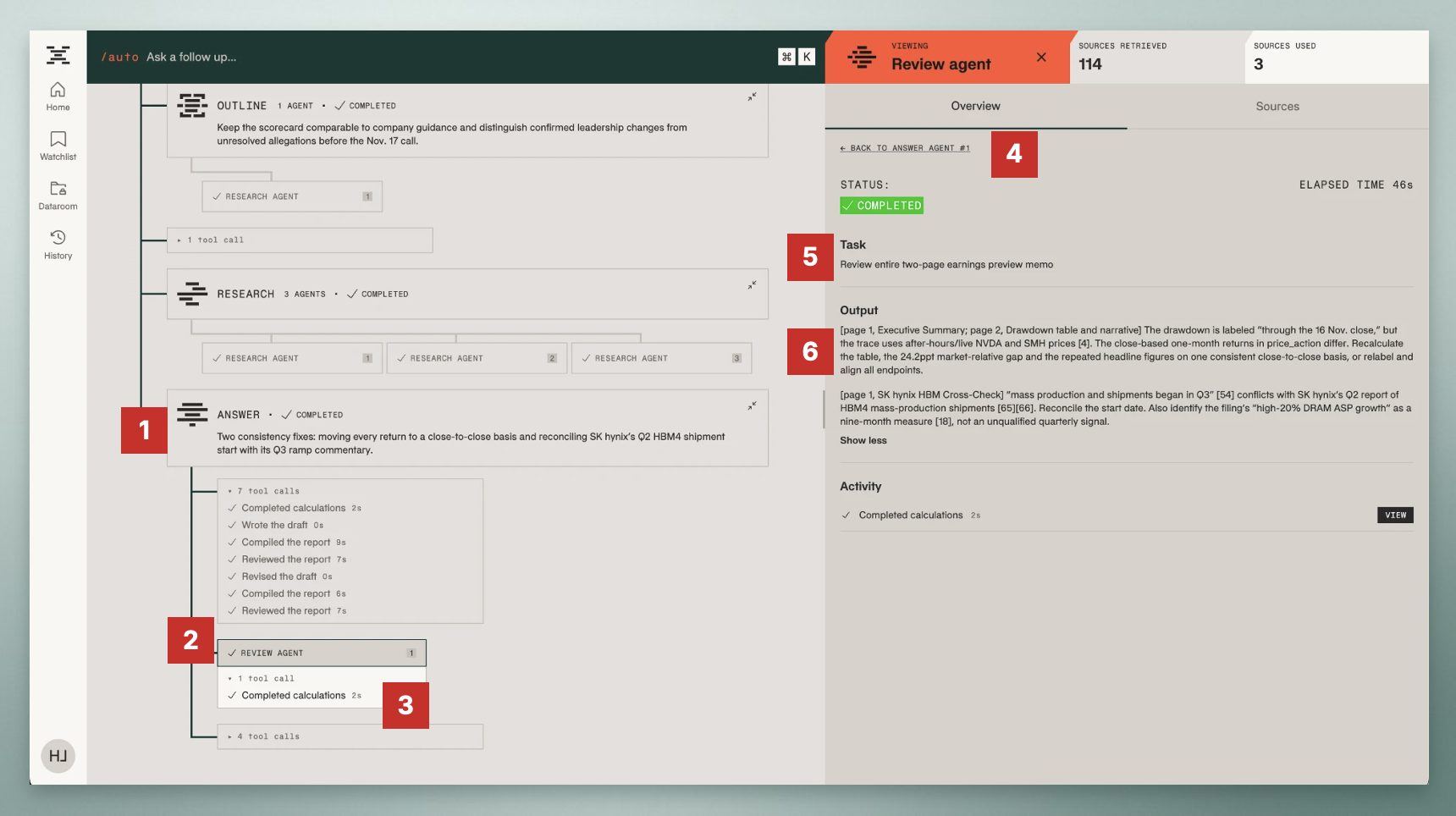
The Review Agent is the last step before you see the answer. The Answer Agent [1] calculates, drafts, compiles, reviews and revises the report. Once the draft is done, the Review Agent starts [2], recalculates figures where needed [3] and sends the revised report back to the Answer Agent to check again [4]. Its task [5] is to review the entire report, and its output [6] is a page-by-page list of fixes: inconsistent figures, conflicting sources and anything to relabel.
Your Data
Terminal X searches your documents, your subscriptions and market data together, with your permissions intact.
Your firm's systems, such as SharePoint, OneDrive, Amazon S3, Snowflake, Outlook and Gmail, connect alongside licensed and public data. Every document is read, split into chunks and tagged with its source, type, tickers, sector and date. Scanned pages and charts go through OCR. That's why agents can find the exact page, not just the file. Indexing is live, permissions carry over from your firm, and documents in Korean, Japanese, Chinese and English are handled natively.
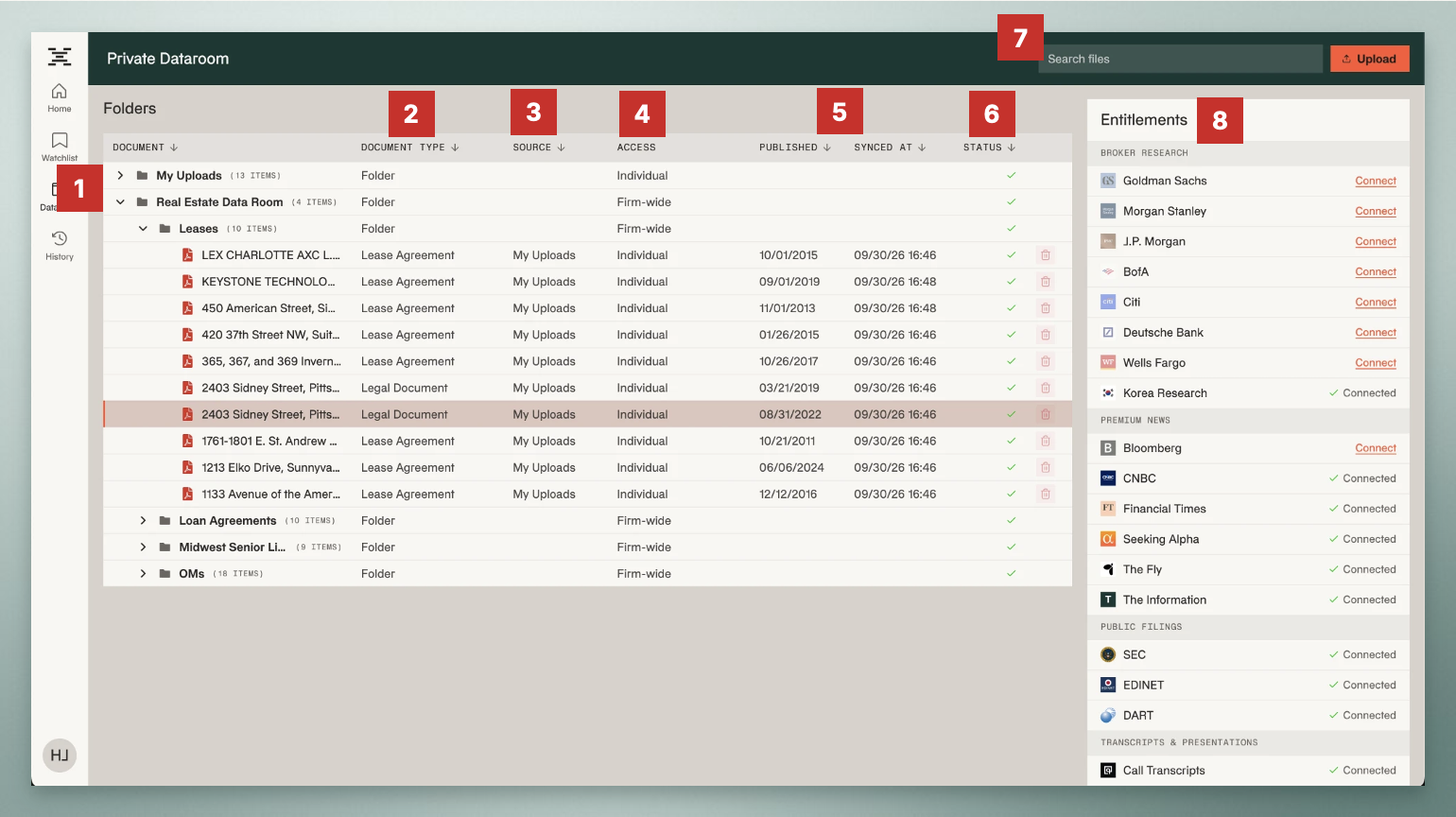
The Private Dataroom is where you manage your firm's internal documents. Folders [1] hold your uploads and your firm's data rooms. Each document shows its type [2], where it came from [3], who can access it [4] and when it was published and last synced [5], so you can see at a glance whether it's current. A tick under Status [6] means it's indexed and searchable. Look up any file by name, type or source, or drag and drop to upload [7]. Entitlements [8] lists the data subscriptions your firm has approved for Terminal X.
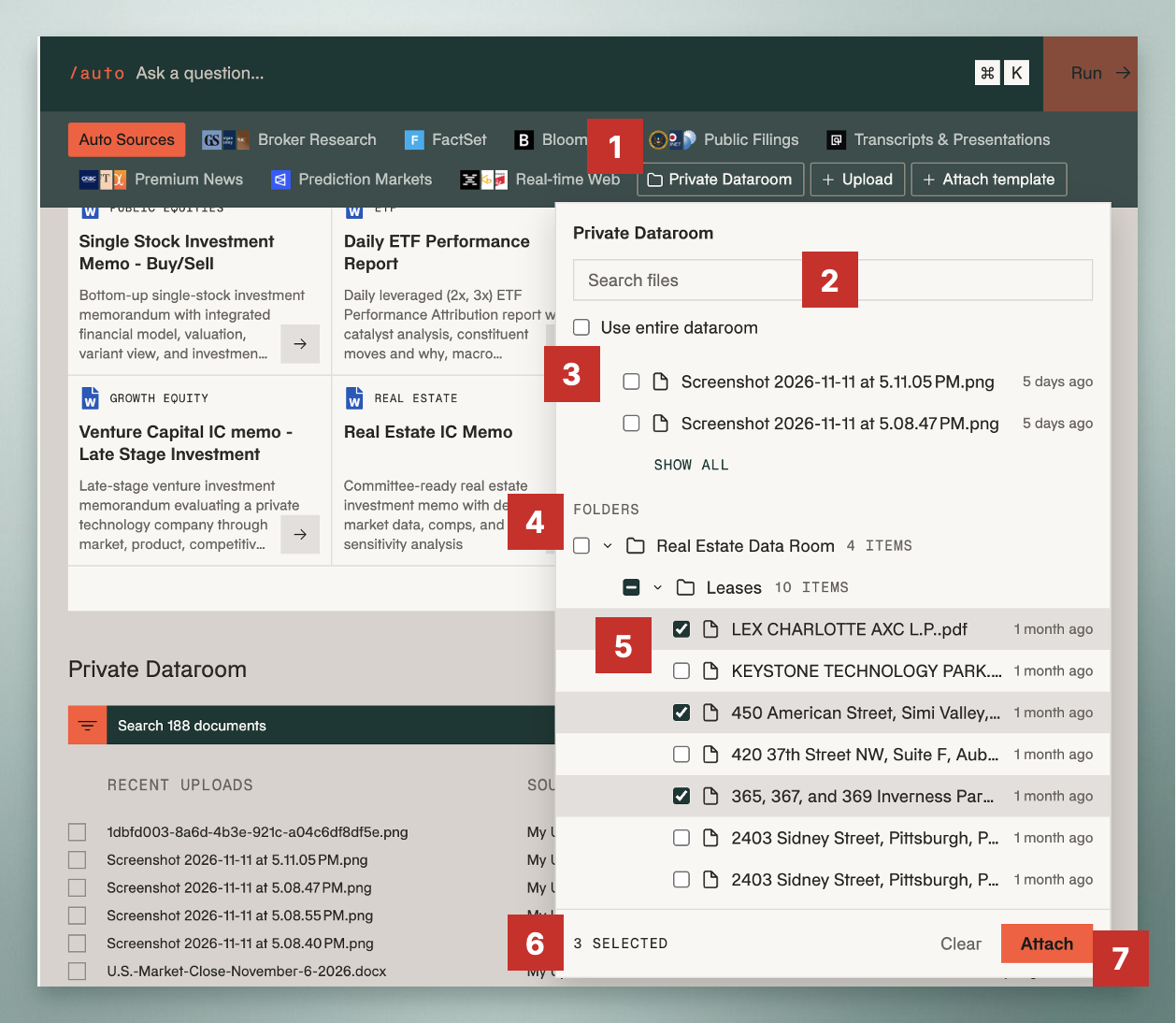
Your files can be used in a question the moment they're indexed. Click Private Dataroom in the source row of the prompt box [1], search for a file [2], and either use the entire data room [3] or tick specific folders [4] and files [5]. The count [6] shows how many you've selected; click Attach [7] to add them to your question. Your files are cited in the source table like any other source.
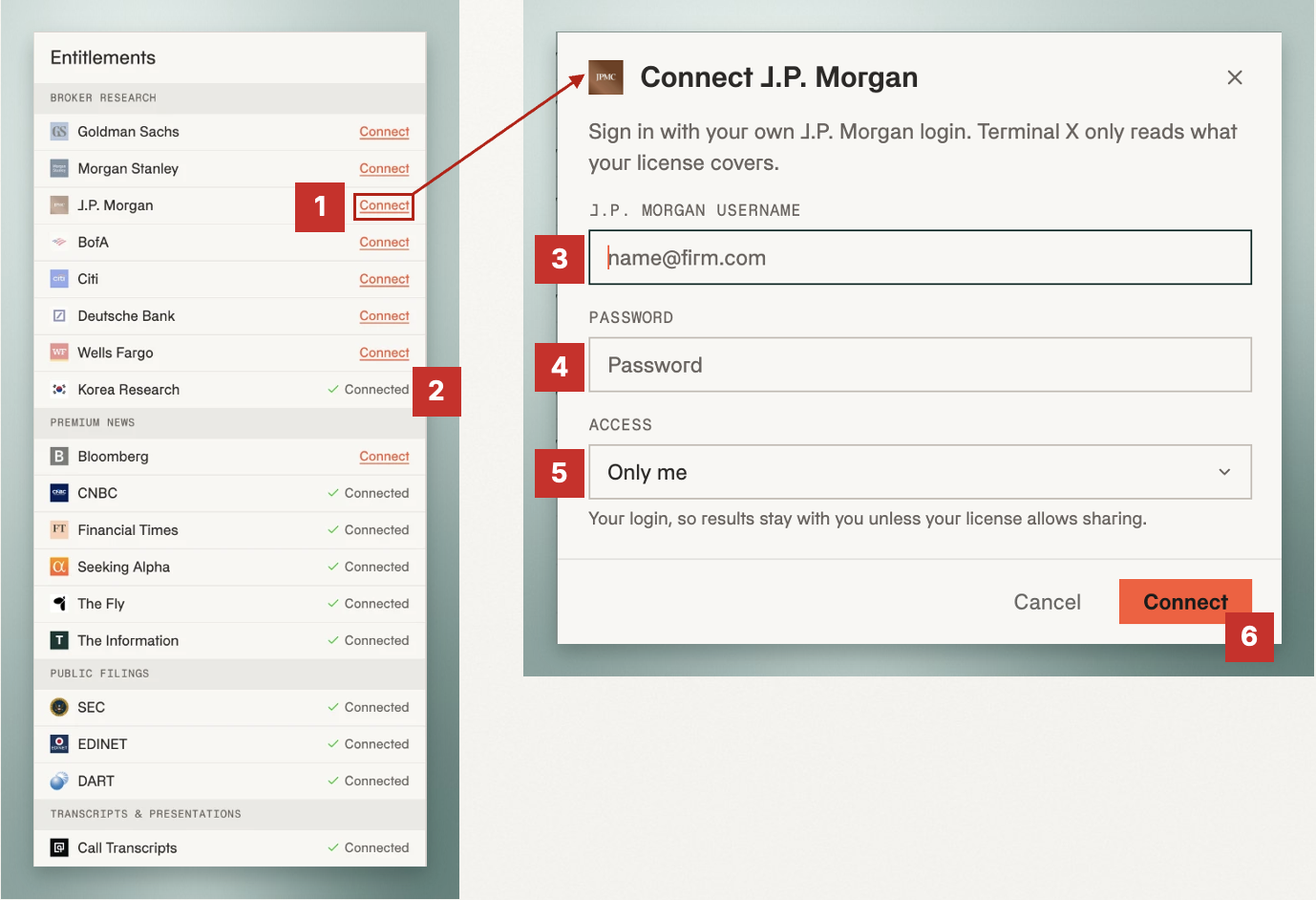
Entitlements bring the data you already subscribe to into the same search. Click Connect next to a provider [1], such as a broker's research portal. Enter your own username [3] and password [4]; all credentials are handled in an encrypted environment. Choose who can use the connection [5], only you or your firm, as your license allows, then click Connect [6]. Requested entitlements are reviewed and approved by your firm admin. Once connected [2], that source is indexed and searched alongside everything else.
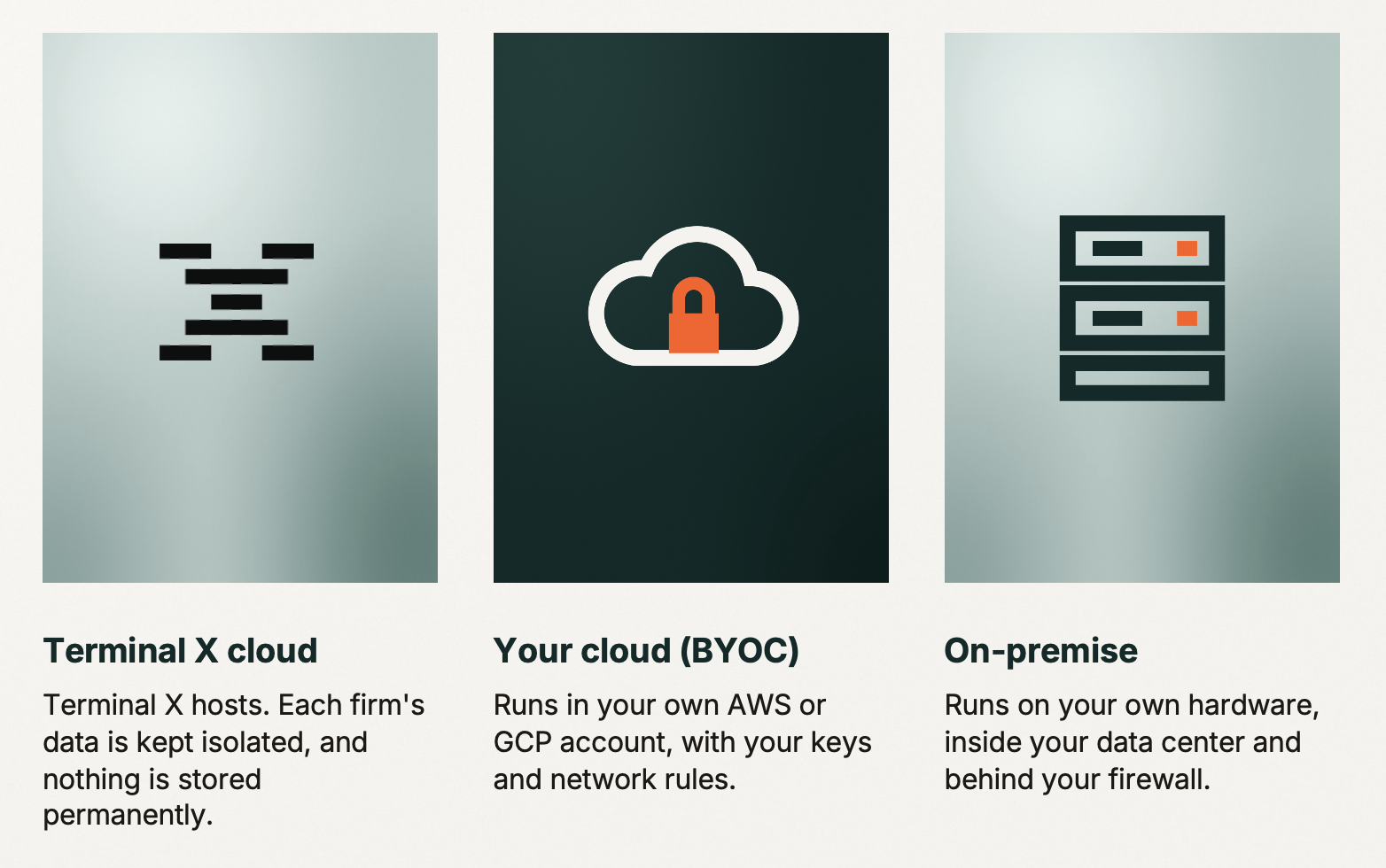
Every deployment gets the same protections. Your data is encrypted at rest and in transit, under a dedicated key per client that rotates every 7 days. Your uploads stay private until an admin shares them, access is set by team with nothing switched on by default, and your data is never used to train models. Terminal X can run in our cloud with each firm's data isolated, in your own cloud account, or on your own hardware behind your firewall.
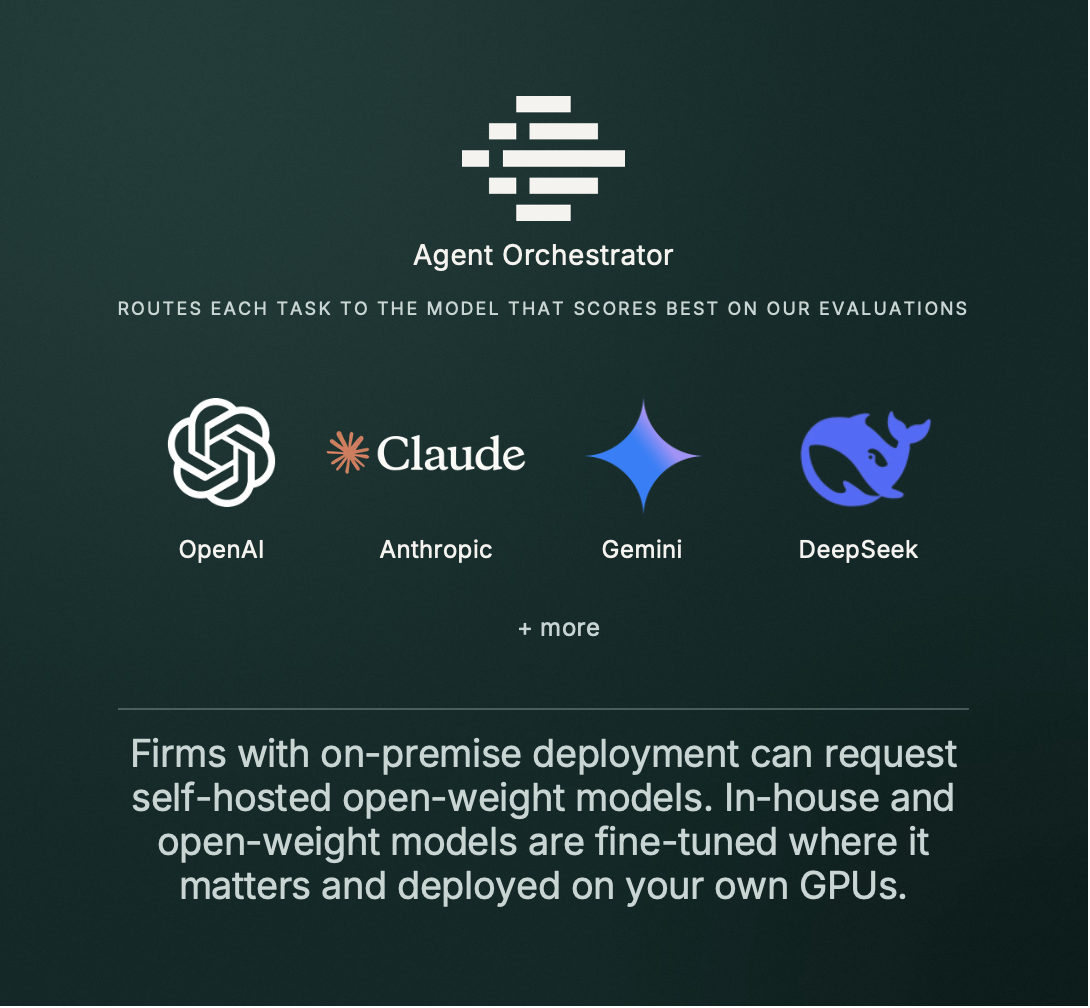
Terminal X isn't tied to one model provider. The Agent Orchestrator routes each task to the model that performs best, and your team can override it or set preferences at any time. Firms with on-premise deployments can also run self-hosted open-weight models on their own GPUs.
Market Live
Your watchlist, with live moves explained and breaking news.
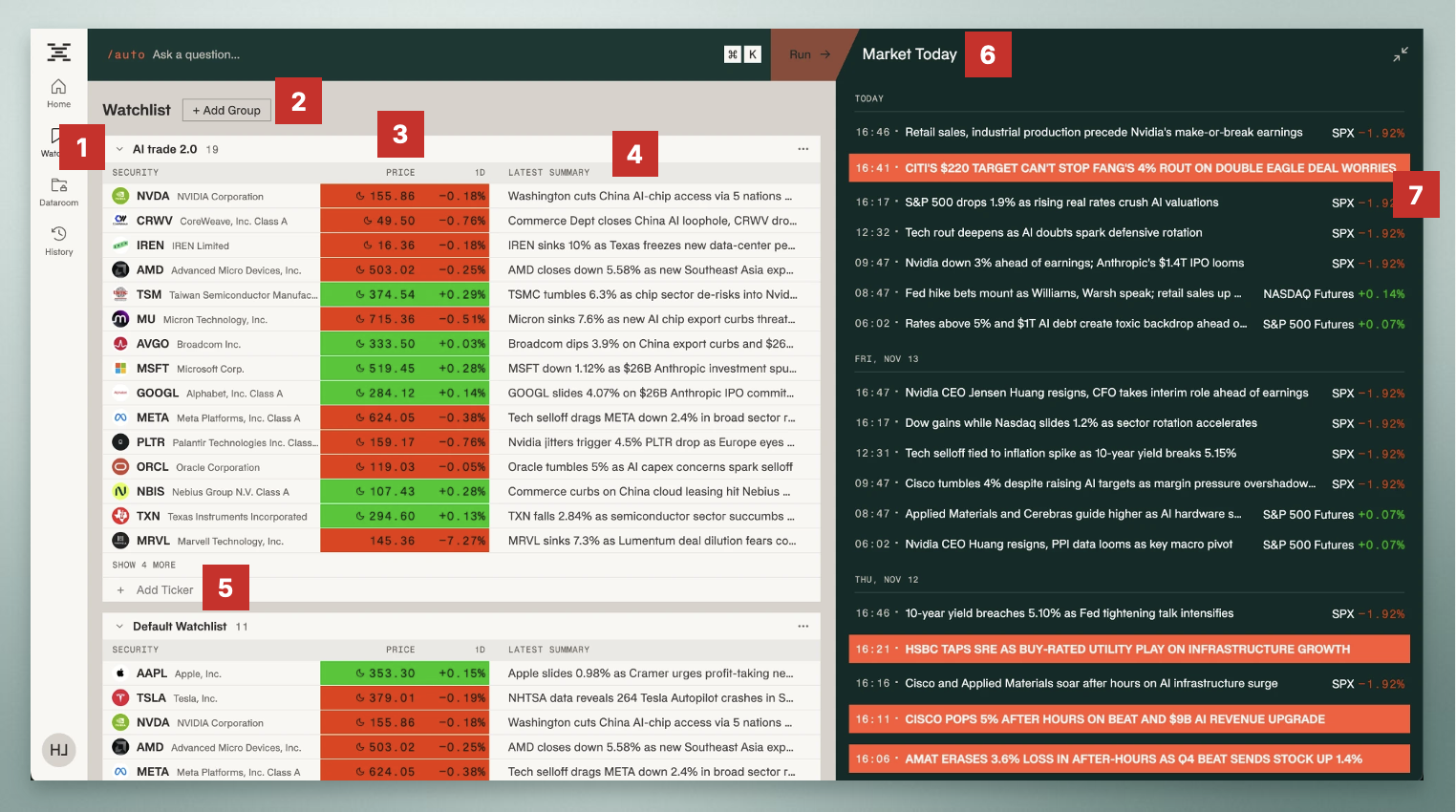
Organize your tickers into watchlist groups [1], and add a new group whenever you need one [2]. Each row shows the live price and the day's move [3], with a one-line summary of the news and events behind it [4]. Add stocks, ETFs, indices and commodities by ticker [5].
On the right, Market Today [6] is a timestamped feed of market moves through the day. Breaking news [7] is highlighted, and you can click any item to read the full story.
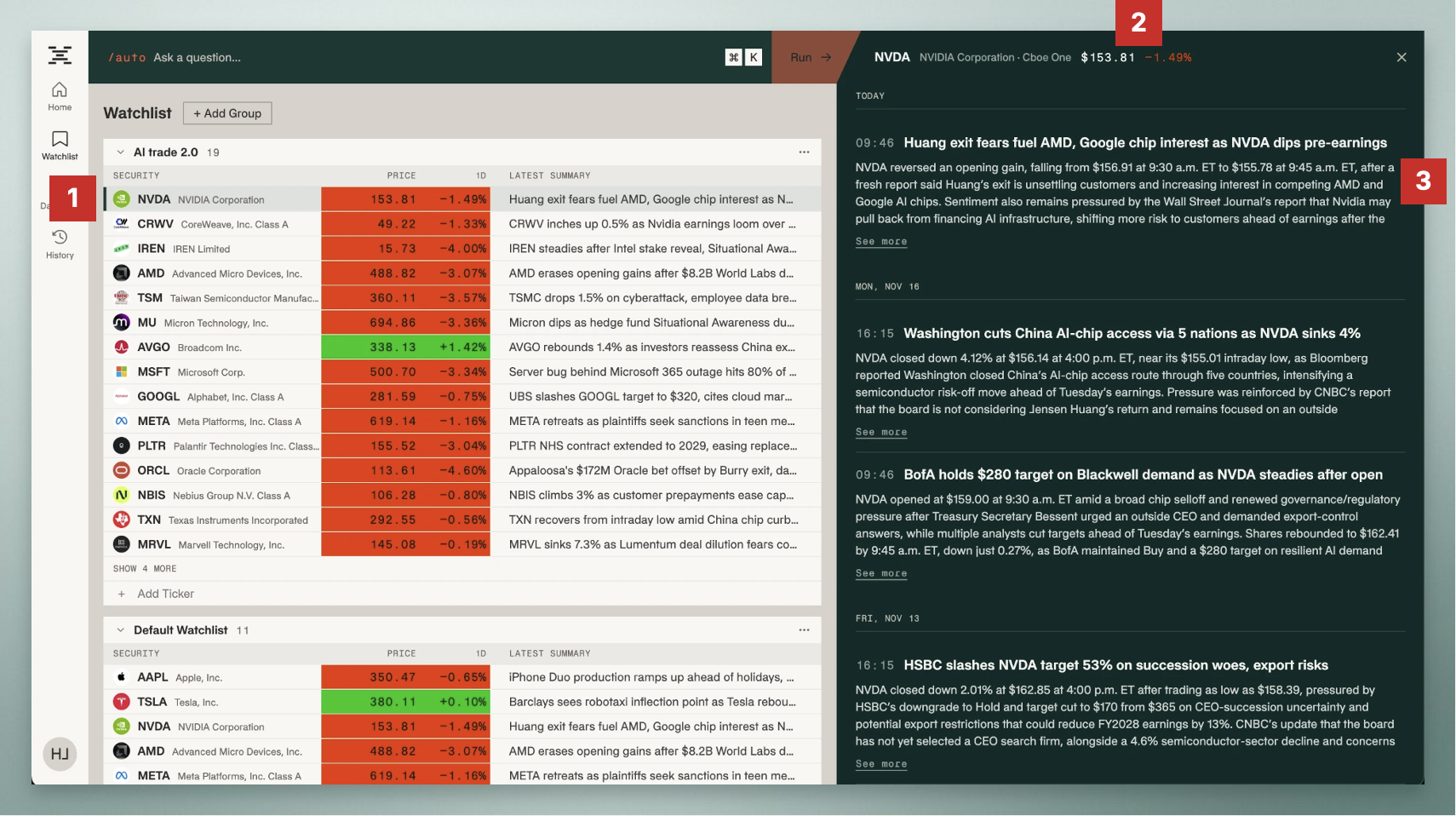
Click any ticker [1] to see why it moved. The panel shows its live quote [2], then each move through the day as a headline with the time it happened [3], so you can follow exactly why your stocks are moving.
API Access
Call Terminal X agents from your own systems.
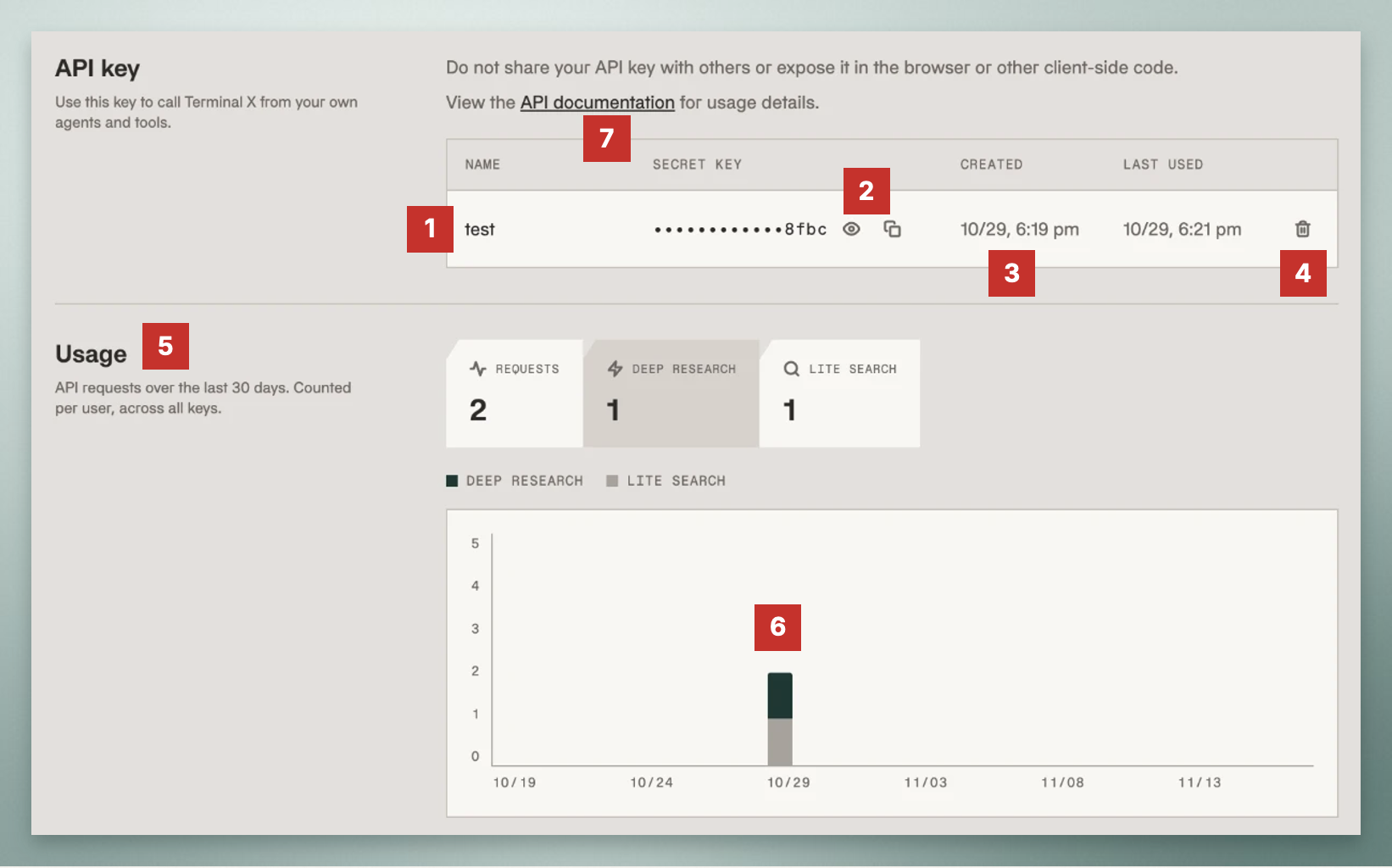
The API lets you run Deep Research and the Lite Agent from your own systems and apps, and feed AI-ready data into your own models and tools. Create and manage your keys on the API page [1]: show or copy a key [2], see when each was created and last used [3], and revoke any you no longer need [4]. Usage [5] shows requests over the last 30 days by agent, with a daily breakdown [6]. The API documentation [7] explains how to connect and call each agent.
Questions? Your Terminal X team is one message away.
More insights

Nvidia's $250 Billion OpenAI Backstop and the Semiconductor Slump
What the Reported Guarantee Does (and Doesn't) Buy
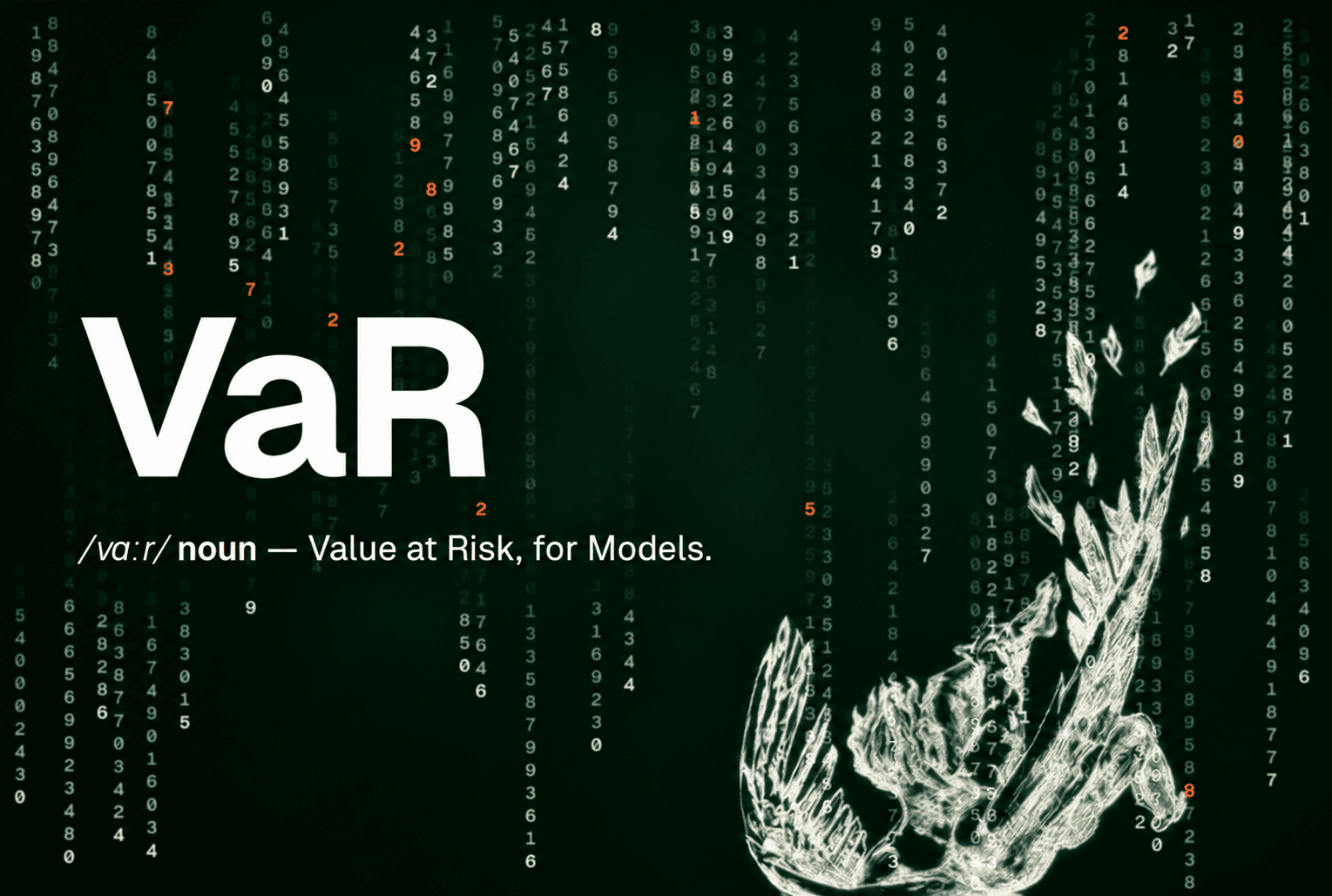
Introducing VaR
Value at Risk, for frontier models. A finance LLM benchmark for asset managers: AI models evaluated on 9 private eval sets built from 259 real buy-side workflows.

Private Credit Crisis: Bubble or Business as Usual?
Looking for stability in an opaque industry